QuickBooks · Direct Deposit & Payroll
QuickBooks Error 50004: Causes and How to Fix It

QuickBooks & Quicken support guides
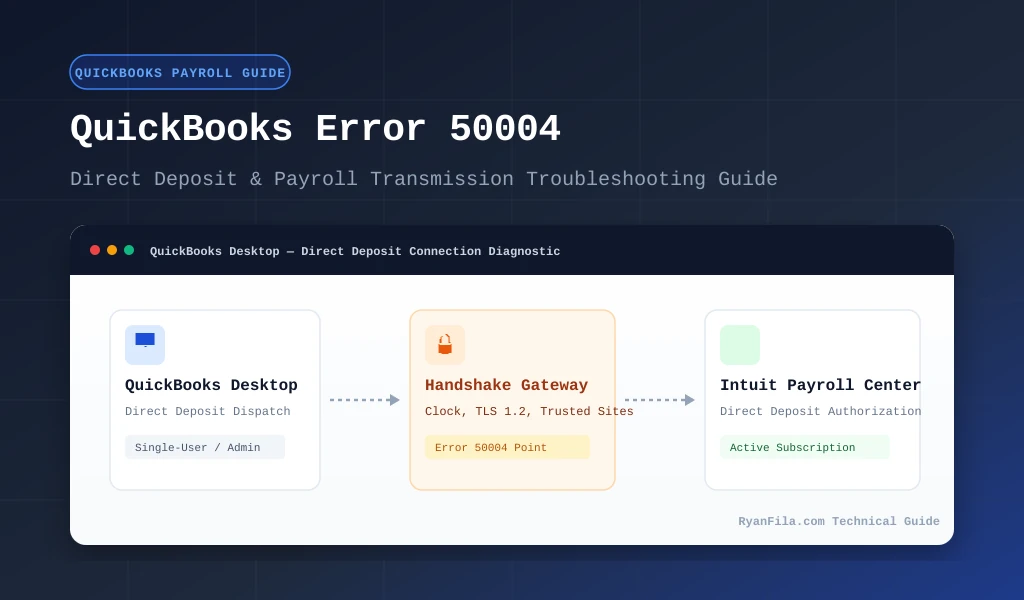
If you encounter QuickBooks Error 50004, it usually occurs when you try to set up, activate, or send Direct Deposit paychecks in QuickBooks Desktop. The error indicates that QuickBooks cannot establish a secure, validated communication session with Intuit's payroll processing servers.
The quick answer: You do not need to reinstall your software or recreate your company file. In the vast majority of cases, Error 50004 is caused by a small clock discrepancy on your Windows computer, an outdated payroll tax table, attempting to transmit payroll in multi-user mode, or Windows security settings blocking Intuit's web endpoints. Following basic system clock synchronization, switching to single-user mode, and updating your tax table resolves this error in under 10 minutes.
What Is QuickBooks Error 50004?
QuickBooks Error 50004 is an authentication and transmission error in QuickBooks Desktop. It specifically impacts payroll features that require online bank communication, most notably Direct Deposit activation, employee bank account validation, and paycheck transmissions through the Intuit Payroll Gateway.
When you initiate a direct deposit action—such as entering your direct deposit service key or clicking "Send Payroll Data"—QuickBooks Desktop packages your transaction data and connects to Intuit's financial servers using Transport Layer Security (TLS). If that connection fails or if Intuit's servers reject the incoming handshake packet, QuickBooks halts the operation and displays Error 50004.
Importantly, Error 50004 does not mean your bank account has been debited twice or that your employee checks are ruined. It simply means the transmission was interrupted before the transaction bundle could be accepted by Intuit.
What Causes QuickBooks Error 50004?
Based on Intuit technical documentation and payroll diagnostic records, several specific triggers cause Error 50004. We distinguish verified direct causes from general environmental contributors below:
Verified Primary Causes
- Windows Date, Time, or Timezone Drift: Intuit's financial servers require strict SSL/TLS cryptographic timestamp matching. If your computer's clock differs by even two or three minutes from standard UTC time, the server rejects the handshake for security reasons.
- Outdated Payroll Tax Tables: Older tax tables lack current digital security certificates and API endpoints required by Intuit's cloud gateways.
- Multi-User Mode Locks: QuickBooks requires exclusive database access to verify and sign direct deposit transactions. Transmitting payroll while other users are working in the company file triggers transmission blocks.
- Windows User Permission Restrictions: Setting up or updating direct deposit requires writing security credentials to the Windows
ProgramDatafolder. Standard non-administrator user accounts are often blocked by Windows User Account Control (UAC).
Contributing System Factors
- Blocked Intuit Endpoints in Internet Settings: Windows Internet Properties (WinINet) governs how QuickBooks Desktop connects to the web. If
intuit.comis not recognized in the Trusted Sites zone or if TLS 1.2 is disabled, the direct deposit module cannot complete the handshake. - Damaged Payroll Transaction Records: Internal list index corruption or corrupted paycheck items can fail pre-flight validation before leaving QuickBooks.
- Desynchronized Payroll Service Key: An inactive subscription, an expired payroll license, or an improperly typed service key stops the Intuit gateway from authenticating the company file.
- Stuck Bundle State in QBW.INI: If a prior payroll session crashed mid-transmission, an initialization flag inside the local
QBW.INIfile may remain in a pending state.
Common Signs and Symptoms
You can identify QuickBooks Error 50004 by the following behaviors:
- The message "Error 50004: Direct deposit setup or payroll transmission could not be completed" appears when you attempt to send payroll.
- The Direct Deposit activation wizard freezes or closes abruptly during account setup.
- QuickBooks prompts you to re-enter your payroll pin repeatedly without sending the paychecks.
- Paychecks remain stuck in the "Send Payroll Data" queue with an unsent status.
- The payroll service displays an active status, but the direct deposit transmission window reports a connection failure.
How to Fix QuickBooks Error 50004 (Step-by-Step)
Work through the following solutions in order. We start with quick, zero-risk checks that resolve over 80% of reported cases, before proceeding to deeper data utilities. After completing each solution, test your direct deposit transmission again.
Solution 1: Synchronize Windows Date, Time, and Timezone
Why this helps: Secure financial transmissions to Intuit rely on accurate server timestamps. Even a minor clock drift will fail SSL/TLS certificate authentication, producing Error 50004 immediately upon clicking Send.
When to try: Always start here. It is fast, safe, and does not alter any company records.
Step-by-step instructions:
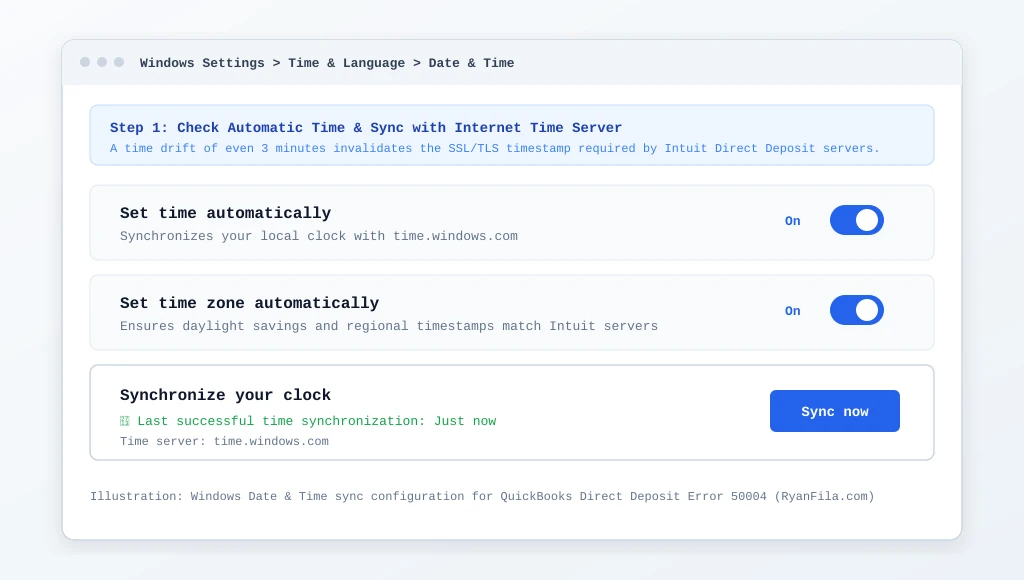
- Right-click the clock in the bottom-right corner of your Windows taskbar and select Adjust date and time (or press Windows Key + I and navigate to Time & Language > Date & Time).
- Toggle Set time automatically to On.
- Toggle Set time zone automatically to On, or manually select your correct local time zone from the dropdown menu.
- Under the Synchronize your clock heading, click the Sync now button.
- Wait for the green checkmark to confirm: "Successfully synchronized with time.windows.com."
- Restart QuickBooks Desktop and attempt to send your direct deposit again.
What to expect: Your Windows system time will instantly align with global internet standards. If time drift was the sole issue, the direct deposit handshake will succeed immediately.
Precautions: Do not adjust the clock manually to past dates to backdate checks, as this will trigger severe payroll security lockouts with Intuit.
If the issue continues: Proceed to Solution 2 below to ensure your company file mode is not locking the payroll pipeline.
Solution 2: Switch to Single-User Mode and Close Other Sessions
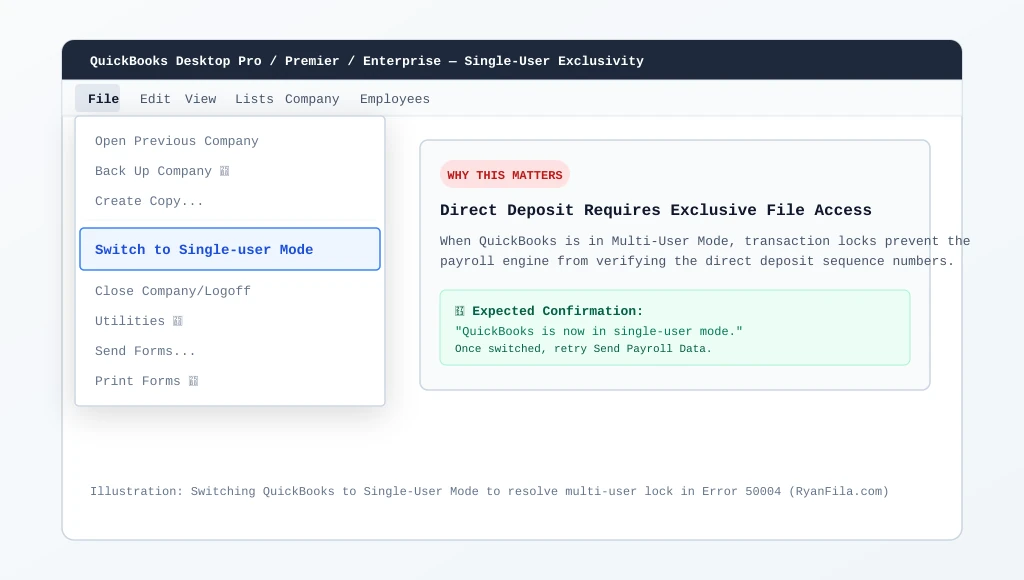
Why this helps: Sending direct deposit data writes unique sequential tracking numbers to your payroll ledger. When QuickBooks Desktop is in Multi-User Mode, transaction record locks prevent the payroll engine from claiming exclusive access, resulting in Error 50004.
When to try: Try this if your office shares a company file over a local network or if you have multiple QuickBooks seats.
Step-by-step instructions:
- Ask all other users to save their current work and completely log out of QuickBooks on their workstations.
- On the main computer (or host machine), open QuickBooks and click the File menu in the top navigation bar.
- Look for the option Switch to Single-user Mode and click it.
- If the menu currently shows "Switch to Multi-user Mode", your file is already in single-user mode.
- Once switched, click Employees > Send Payroll Data and retry sending the direct deposit batch.
What to expect: QuickBooks will display a brief confirmation dialog stating that it is now operating in single-user mode. Other workstations will be temporarily blocked from editing the company file until you switch back.
Precautions: Ensure other staff members do not force-close QuickBooks while holding open invoices or paychecks, as this can leave disconnected user sessions active. If you face network host lockups, review our guide on how to troubleshoot QuickBooks multi-user mode issues.
If the issue continues: Move to Solution 3 to ensure your payroll tax table has not expired.
Solution 3: Update the Payroll Tax Table and QuickBooks Desktop
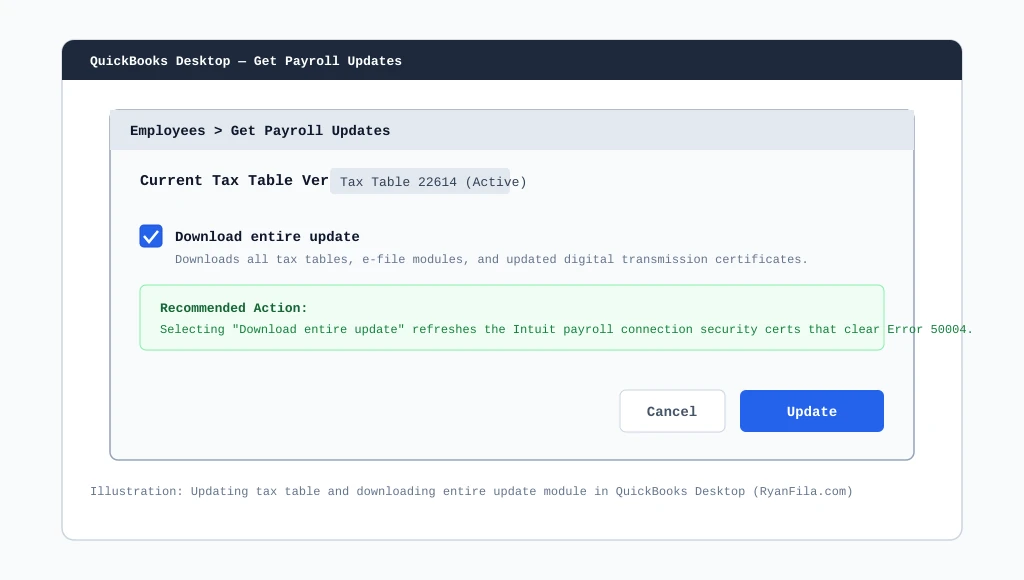
Why this helps: Intuit regularly updates encryption protocols and digital certificates required for banking communications. If your tax table or QuickBooks release version is outdated, Intuit's modern servers will refuse the connection.
When to try: Whenever you receive Error 50004 at the start of a new quarter, after an operating system update, or if your last payroll update occurred more than 30 days ago.
Step-by-step instructions:
- In QuickBooks Desktop, navigate to Employees > Get Payroll Updates.
- In the window that opens, select the checkbox next to Download entire update.
- Click the blue Update button.
- Wait for the progress bar to complete and verify that QuickBooks displays the message: "A new tax table and/or updates have been installed on your computer."
- Next, update the main application: Click Help > Update QuickBooks Desktop > Update Now tab > check Reset Update > click Get Updates.
- Restart QuickBooks Desktop to apply the components.
What to expect: QuickBooks downloads the newest federal and state tax tables along with refreshed server connection modules. For detailed steps on related update hurdles, see our payroll update error 15270 guide or our walkthrough for QuickBooks payroll error 2002.
Precautions: Ensure you have an uninterrupted internet connection while the update downloads. Do not kill QuickBooks via Task Manager while updates are installing.
If the issue continues: Proceed to Solution 4 to grant QuickBooks administrative rights in Windows.
Solution 4: Run QuickBooks as an Administrator
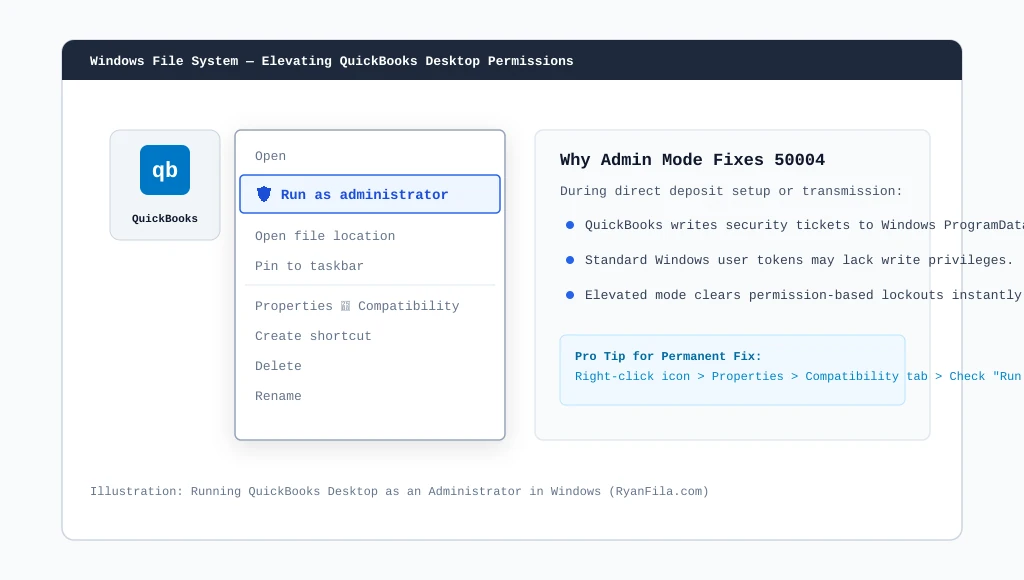
Why this helps: Activating direct deposit and generating secure banking communication keys requires writing temporary security certificates to system-level folders on your Windows hard drive. Standard Windows accounts lack write permissions for these directories.
When to try: When the error triggers specifically during the direct deposit activation wizard or when entering bank details.
Step-by-step instructions:
- Close QuickBooks Desktop completely and ensure the
QBW32.exeprocess is not lingering in Task Manager. - Locate your QuickBooks Desktop shortcut icon on your Windows desktop.
- Right-click the icon and choose Run as administrator from the context menu.
- If prompted by Windows User Account Control (UAC) asking "Do you want to allow this app to make changes to your device?", click Yes.
- Open your company file and attempt the direct deposit activation or paycheck submission.
What to expect: QuickBooks opens with full Windows file system and registry privileges, allowing the payroll security subsystem to create authentication tokens without restriction.
Precautions: If running as admin resolves the issue, you can make this permanent by right-clicking the shortcut > Properties > Compatibility tab > checking Run this program as an administrator > Apply.
If the issue continues: Proceed to Solution 5 to configure Windows Internet Options and security zones.
Solution 5: Add Intuit to Trusted Sites and Enable TLS 1.2
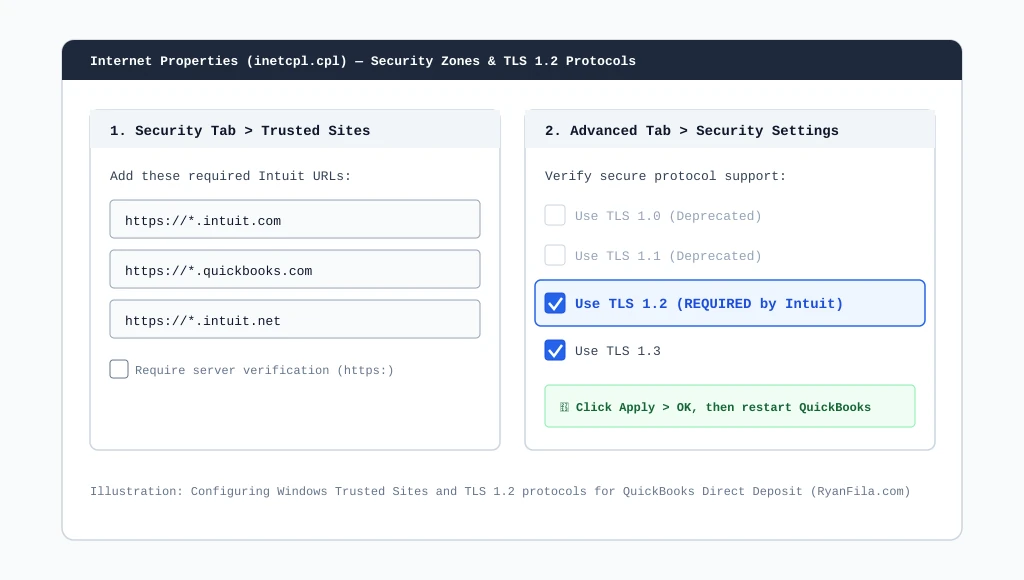
Why this helps: Even if you use Chrome or Edge for daily web browsing, QuickBooks Desktop relies internally on Windows Internet Options (WinINet) to communicate with Intuit servers. Restrictive security zones or disabled TLS 1.2 protocols silently block direct deposit payloads.
When to try: When your internet connection is active, but QuickBooks claims it cannot reach Intuit servers or fails with Error 50004.
Step-by-step instructions:
- Press Windows Key + R on your keyboard to open the Run prompt.
- Type
inetcpl.cpland press Enter to open the Windows Internet Properties dialog. - Click the Security tab, select the Trusted sites green checkmark icon, and click the Sites button.
- In the "Add this website to the zone" box, add the following URLs one by one, clicking Add after each:
https://*.intuit.comhttps://*.quickbooks.comhttps://*.intuit.net
- Uncheck "Require server verification (https:) for all sites in this zone" if needed, then click Close.
- Next, switch to the Advanced tab. Scroll down to the bottom Security section.
- Ensure that Use TLS 1.2 is checked. (If available, TLS 1.3 may also be checked; ensure TLS 1.0 and 1.1 are unchecked).
- Click Apply and then OK. Restart your computer.
What to expect: Windows will grant unrestricted, secure TLS 1.2 data transmission between QuickBooks Desktop and Intuit's payroll cloud.
Precautions: Do not add wildcard domains for third parties; only add verified Intuit and QuickBooks endpoints.
If the issue continues: Move to Solution 6 to verify your company file for internal data corruption.
Solution 6: Verify and Rebuild Your Company File Data
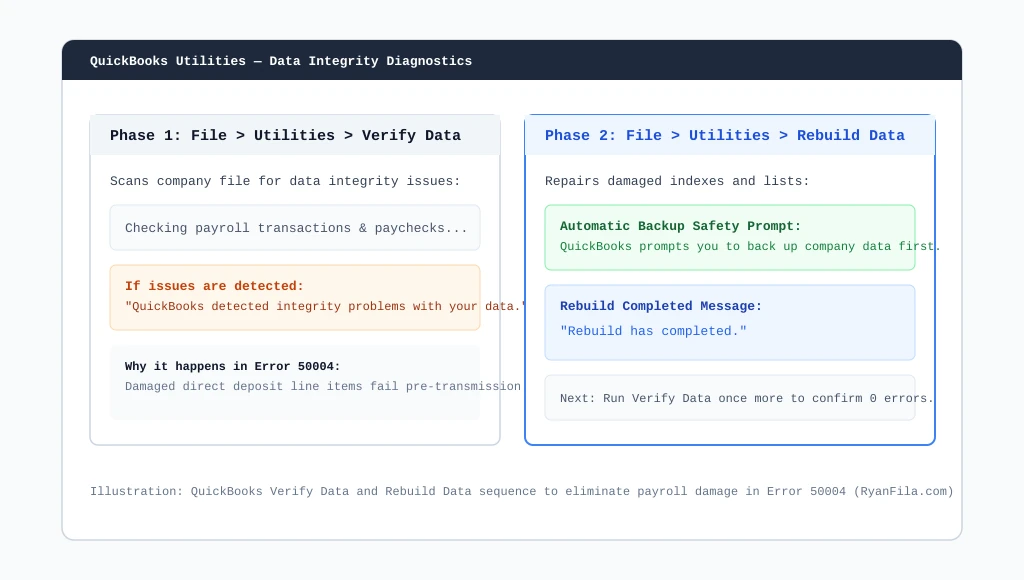
Why this helps: If an employee's direct deposit record, routing number cache, or paycheck calculation contains internal index corruption, QuickBooks fails to assemble the encrypted transmission file and halts with Error 50004.
When to try: When regular paychecks send without issue, but one particular employee or specific batch triggers Error 50004.
Step-by-step instructions:
- In QuickBooks Desktop, click File > Utilities > Verify Data.
- Click OK to allow QuickBooks to inspect your database. If it reports "QuickBooks detected no problems with your data," your file integrity is clean.
- If QuickBooks detects issues (e.g., "Your data has lost integrity"), click File > Utilities > Rebuild Data.
- When prompted, click OK to create a mandatory backup of your company file before the repair begins. Choose a safe local folder (like your Documents folder).
- Allow the Rebuild tool to finish. Depending on file size, this may take between 5 and 20 minutes.
- When you see the message "Rebuild has completed," click OK.
- Run Verify Data a second time to ensure zero integrity errors remain.
What to expect: Damaged indexes in your payroll sub-tables are recalculated, ensuring clean transmission data packets. If your file experiences deeper issues, refer to our troubleshooting guides for when a company file will not open or when QuickBooks crashes opening a company file.
Precautions: Never skip the backup prompt before running Rebuild Data. Do not terminate QuickBooks while the rebuild progress bar is moving.
If the issue continues: Move to Solution 7 to validate your direct deposit payroll service key.
Solution 7: Review and Re-enter Your Payroll Service Key
Why this helps: Direct deposit requires an active, validated Payroll Service Key tied to your federal Employer Identification Number (EIN). If the local key file is out of sync with Intuit's subscription registry, server authentication will fail with Error 50004.
When to try: When Error 50004 occurs during initial direct deposit enrollment, renewal, or after changing payroll subscription tiers.
Step-by-step instructions:
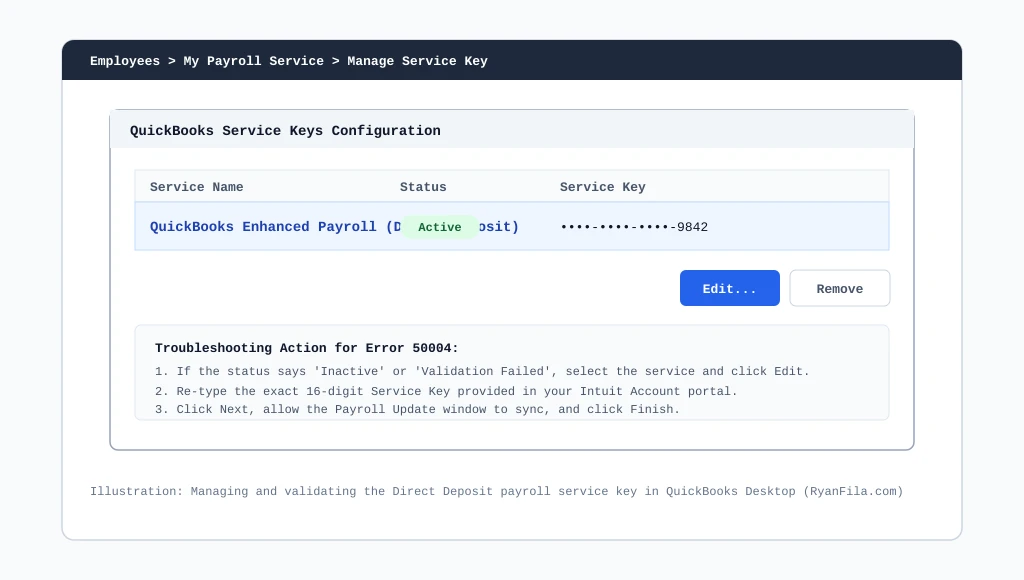
- In QuickBooks Desktop, click Employees > My Payroll Service > Manage Service Key.
- In the QuickBooks Service Keys window, highlight your active payroll service name.
- Check the Status column. If it says Active, click the Edit button at the bottom.
- Review the 16-digit service key. Verify that it matches the key listed in your Intuit Account portal (camps.intuit.com).
- If the key is incorrect or marked inactive, remove the old key and click Add to input the correct key.
- Click Next. QuickBooks will contact Intuit's servers to validate the service key.
- When the Payroll Update message appears confirming activation, click Finish.
What to expect: QuickBooks synchronizes your subscription status and confirms that your Direct Deposit agreement is recognized as active.
Precautions: Ensure your company EIN in Company > Company Information matches the exact EIN registered with your Intuit Payroll account.
If the issue continues: Move to Solution 8 for advanced initialization file recovery.
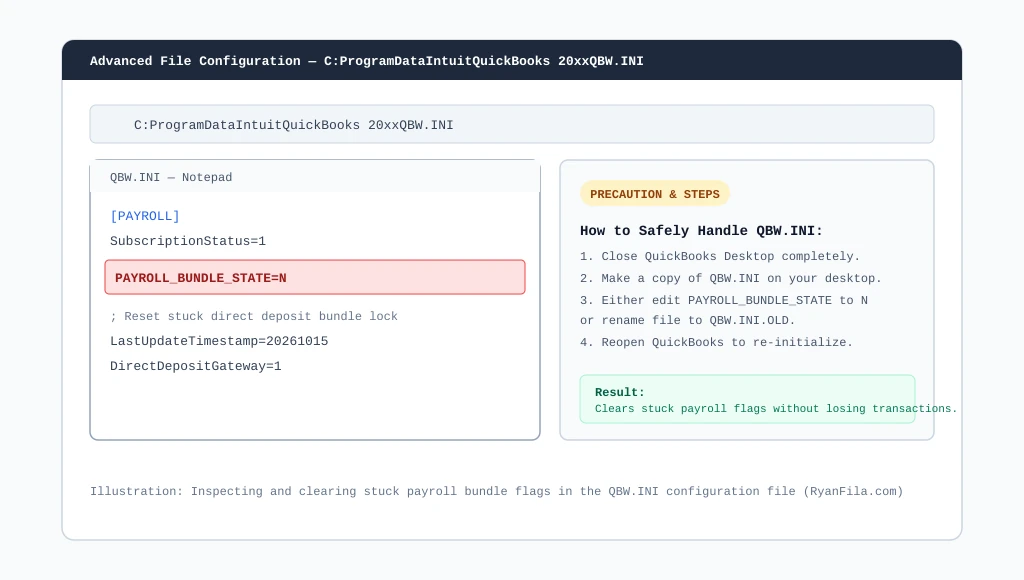
Solution 8: Reset Initialization in the QBW.INI Configuration File
Why this helps: QuickBooks stores local payroll initialization flags and transmission session cookies in the QBW.INI file. If a previous payroll send was aborted or crashed mid-transfer, a stuck parameter such as PAYROLL_BUNDLE_STATE can lock out subsequent direct deposit attempts.
When to try: Only as an advanced step when all previous seven solutions have failed, and your subscription is confirmed active.
Step-by-step instructions:
- Exit QuickBooks Desktop completely on all computers.
- Open Windows File Explorer (Windows Key + E).
- In the folder address bar, paste the following path and press Enter:
C:\ProgramData\Intuit\QuickBooks 20xx(replace 20xx with your QuickBooks year version, e.g., QuickBooks 2024).
Note: If ProgramData is hidden, click View > Show > Hidden items in File Explorer. - Locate the file named QBW.INI.
- Right-click QBW.INI and click Copy, then paste a duplicate onto your Desktop as a safety backup.
- Right-click the original QBW.INI file in the Intuit folder and select Open with > Notepad.
- Locate the section header
[PAYROLL]. - Look for the line
PAYROLL_BUNDLE_STATE=Y. Change theYtoN(so it readsPAYROLL_BUNDLE_STATE=N). If this line does not exist, rename the entire file toQBW.INI.OLD. - Save the file in Notepad (Ctrl + S) and close it.
- Reopen QuickBooks Desktop and test sending your direct deposit.
What to expect: If renamed or modified, QuickBooks regenerates a pristine initialization file, freeing any stuck transmission bundle tokens without deleting transactions.
Precautions: Always save a copy of QBW.INI to your desktop before editing. Do not edit other lines in this configuration file.
If the issue continues: Review the section below on when to contact official Intuit support.
When to Contact QuickBooks Support
While the eight solutions above resolve almost all instances of Error 50004, there are specific situations where only Intuit's internal banking team can intervene:
- Intuit Risk or Banking Hold: If your company's direct deposit limit has been exceeded, or if Intuit's compliance team placed a temporary security hold on your account pending bank verification, direct deposit transmissions will fail server-side.
- Pending Bank Account Verification: If you recently changed your business bank routing or account number and the two test micro-deposits have not yet been verified in the payroll portal.
- Subscription Billing Suspension: If an expired credit card on file caused a temporary subscription freeze.
Frequently Asked Questions
Can QuickBooks Error 50004 cause duplicate payroll charges?
No. Error 50004 stops the transmission before Intuit's banking clearinghouse processes the transaction bundle. Your bank account will not be debited twice. However, you should always check your Payroll Center and bank statement before resending to verify the exact status of your checks.
Do I need to reinstall QuickBooks to fix Error 50004?
Almost never. Error 50004 is fundamentally a communication, clock, or permission issue, not a sign of damaged core application binaries. Reinstalling QuickBooks takes significant time and rarely addresses the root cause (such as a time drift or TLS 1.2 misconfiguration).
Will troubleshooting Error 50004 delete my paychecks or employee details?
No. None of the recommended solutions delete your transactions, pay stubs, or employee profiles. Even running the Rebuild Data tool preserves your data while fixing internal database indexes. To be safe, QuickBooks prompts you to create a complete backup before running Rebuild.
Why does Error 50004 appear only for direct deposit and not printed paychecks?
Printed paychecks are processed locally on your computer without connecting to external banking servers. Direct deposit, by contrast, requires real-time encryption, TLS authentication, active subscription validation, and secure transmission to Intuit's financial gateway.
What should I do if my payroll deadline is today and Error 50004 will not clear?
If your direct deposit cutoff time (typically 5:00 PM Pacific Time, two business days before payday) is approaching, you can switch the affected paychecks to Paycheck (Printed) to pay your employees on time with physical checks or manual bank transfers. Once payday is covered, you can resolve the direct deposit connection at your convenience.
Final Thoughts
Dealing with a direct deposit error when payday is on the line can feel stressful, but QuickBooks Error 50004 is usually straightforward to solve.
Begin by confirming your Windows clock is synchronized and that QuickBooks is running in single-user mode with administrative privileges. In almost all cases, refreshing your payroll tax table and checking your TLS 1.2 settings will have your direct deposit pipeline running smoothly in just a few minutes.
About RyanFila
RyanFila is an experienced software support professional who has worked with different clients and helped them solve QuickBooks and Quicken problems. Through RyanFila, he shares free troubleshooting tips, practical guides, and useful information for accounting software users.