QuickBooks Desktop
Fix QuickBooks Multi-User Mode Not Working in 5 Minutes

QuickBooks & Quicken support guides
If your QuickBooks multi-user mode is not working, the problem is often related to hosting, network communication, firewall settings, permissions, or the QuickBooks Database Server service.
This guide covers practical troubleshooting steps for both Windows and Mac environments.
Start Here: 3 Essential Fixes
Fix 1: Check Hosting Settings
This is one of the first things to check.
On the SERVER computer
- Open QuickBooks.
- Do not open the company file yet.
- Click File → Utilities.
- If you see Host Multi-User Access, select it.
- If you see Stop Hosting Multi-User Access, leave it as it is.
On each workstation
- Open QuickBooks.
- Go to File → Utilities.
- If you see Stop Hosting Multi-User Access, click it and confirm.
Only the server computer should host multi-user access.
Fix 2: Restart QuickBooks Database Server
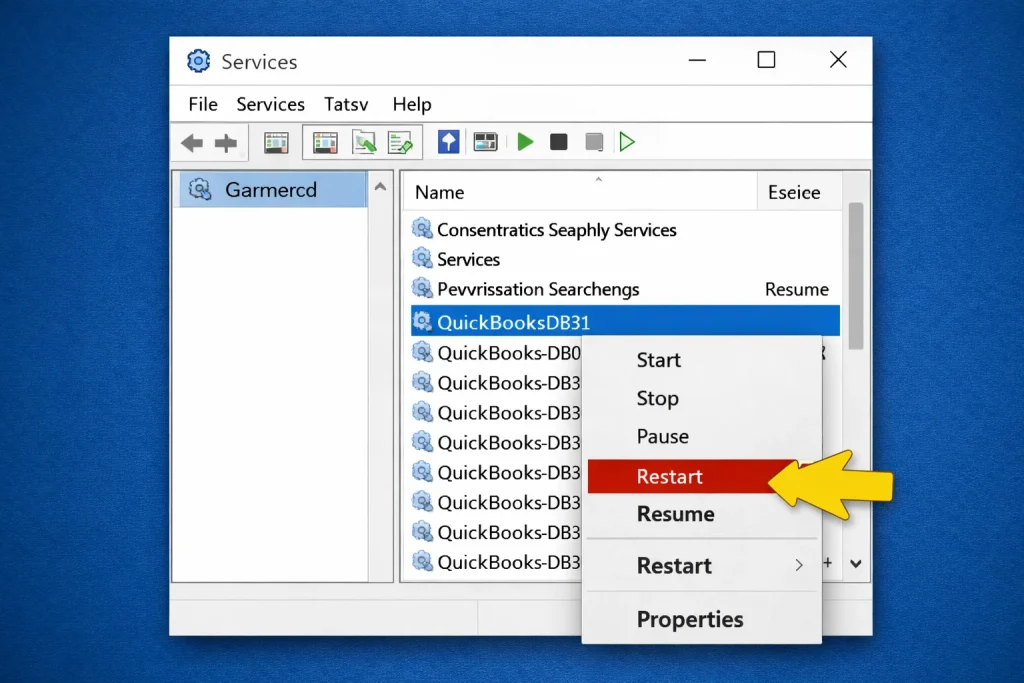
This service allows other computers to connect to the company file.
- Press Windows + R.
- Type services.msc and press Enter.
- Find QuickBooksDBXX.
- Right-click it and select Restart.
- If Restart is unavailable, select Start.
Fix 3: Rename .ND and .TLG Files
- Open File Explorer.
- Go to the company file folder.
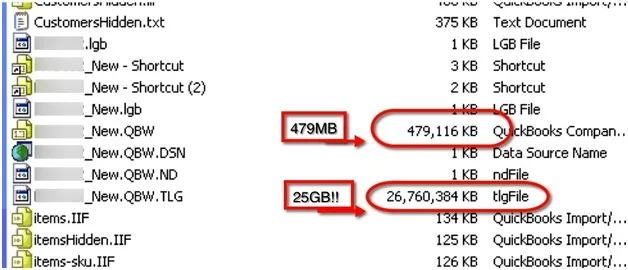
- Find the .ND and .TLG files.
- Rename each by adding .old at the end.
- Open QuickBooks again.
QuickBooks will recreate these files when needed.
Full Step-by-Step Solutions for Windows
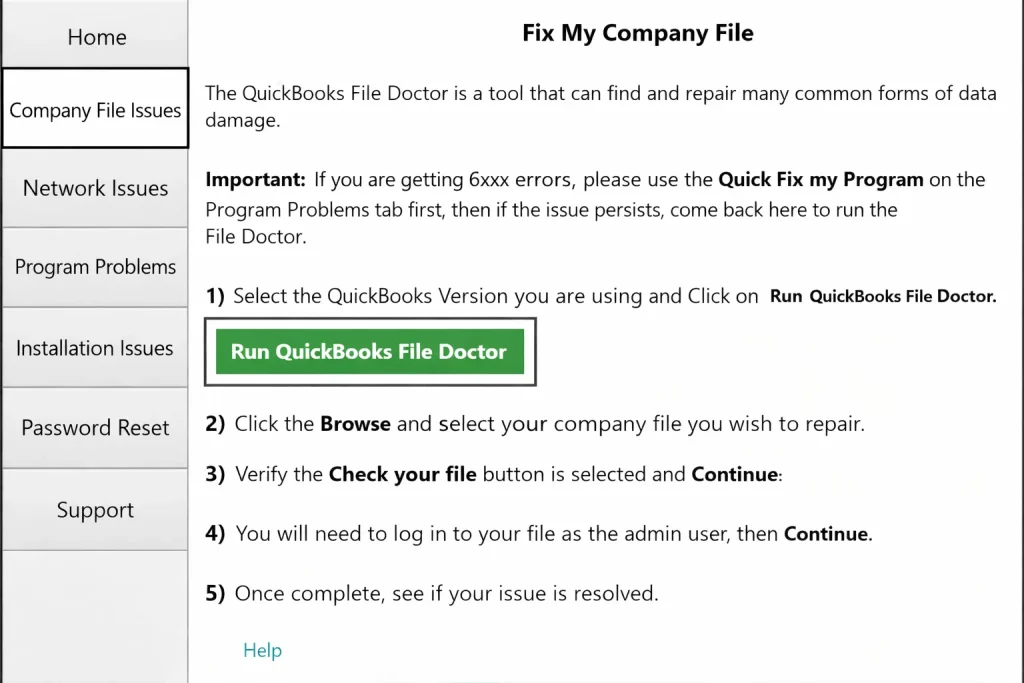
Solution 1: Run QuickBooks File Doctor
- Download and install QuickBooks Tool Hub from Intuit.
- Open QuickBooks Tool Hub.
- Click the Network Issues tab.
- Select QuickBooks File Doctor.
- Choose your company file.
- Select Check your file and network.
- Click Continue.
- Enter the QuickBooks admin password if requested.
- Wait for the scan to finish.
Solution 2: Configure the Firewall
Firewall settings can block QuickBooks communication.
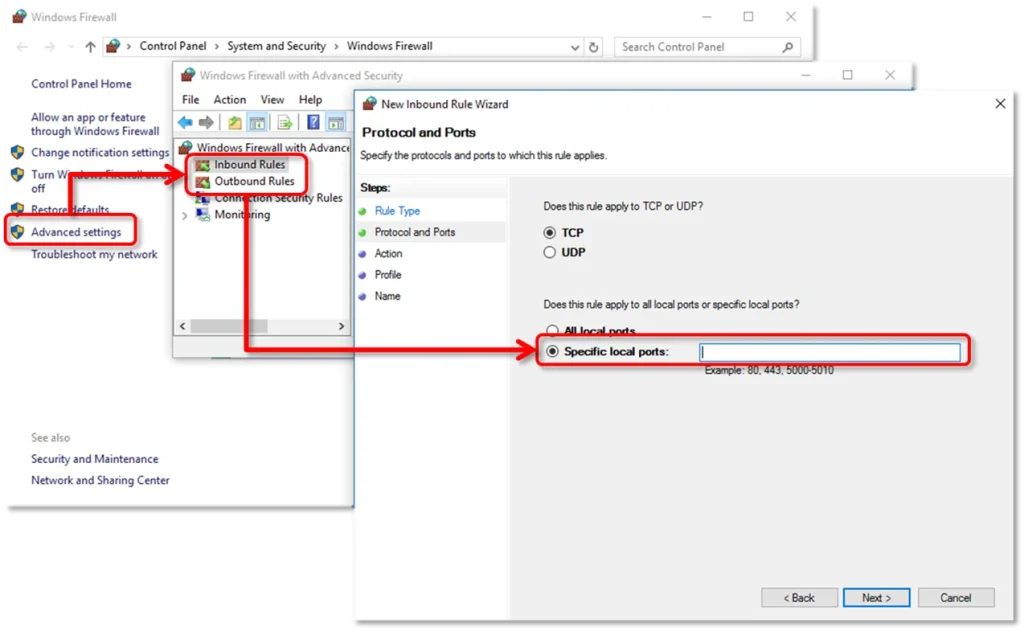
- Open Control Panel.
- Go to System and Security → Windows Defender Firewall.
- Open Advanced Settings.
- Create an inbound TCP rule for the required QuickBooks ports.
- Allow the connection and apply the rule to the appropriate profiles.
- Repeat for outbound rules if necessary.
Common ports used by QuickBooks can include 8019, 56728, and 55378–55382, depending on the QuickBooks version.
Solution 3: Check Folder Permissions
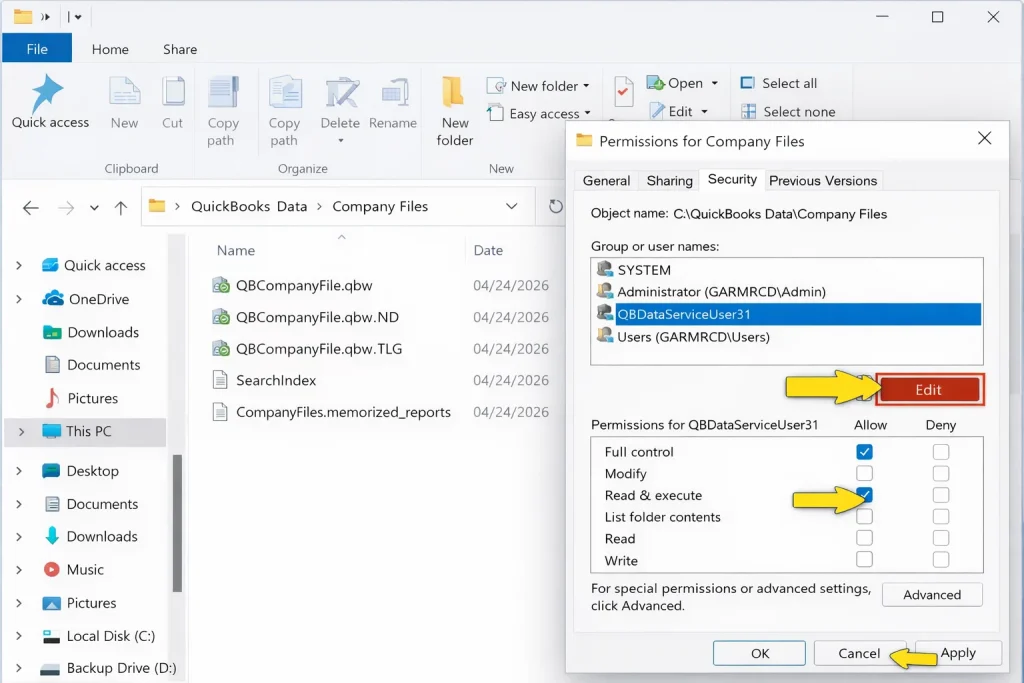
- Open the company file folder.
- Right-click it and choose Properties.
- Open the Security tab.
- Check the permissions for the QuickBooks database service user.
- Make sure the required access is allowed.
Solution 4: Test the Network Connection
First identify the server name, then test it from the workstation.
- Press Windows + R and type cmd.
- Run ipconfig /all.
- Note the server host name.
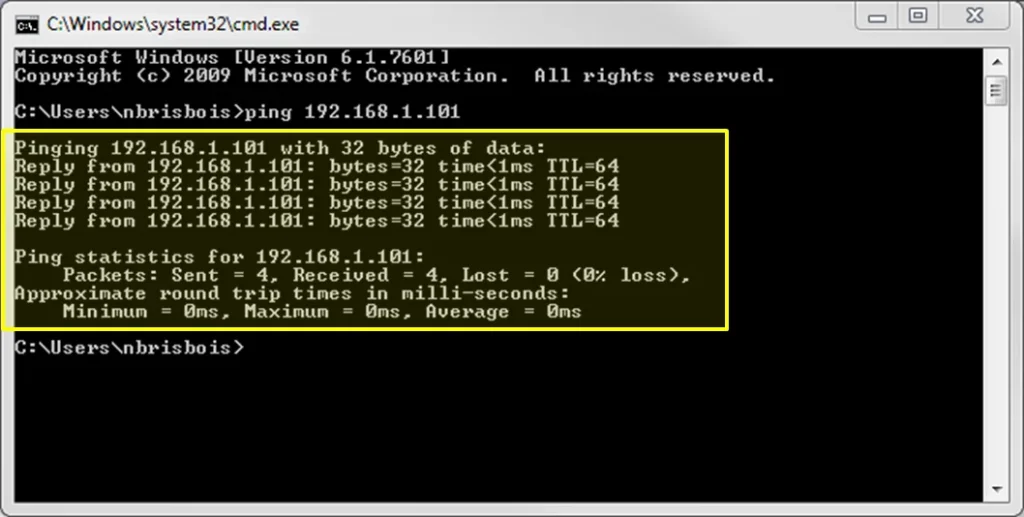
- From a workstation, run ping servername.
Replies indicate that the network connection is responding. A timeout points to a network or firewall issue that needs further checking.
Fix QuickBooks Multi-User Mode on Mac
Solution 1: Check QuickBooks Server Status
- Open Finder.
- Open Applications.
- Open QuickBooks Server.
- Check the company file list.
- If the file shows Not Shared, select it and click Start Sharing.
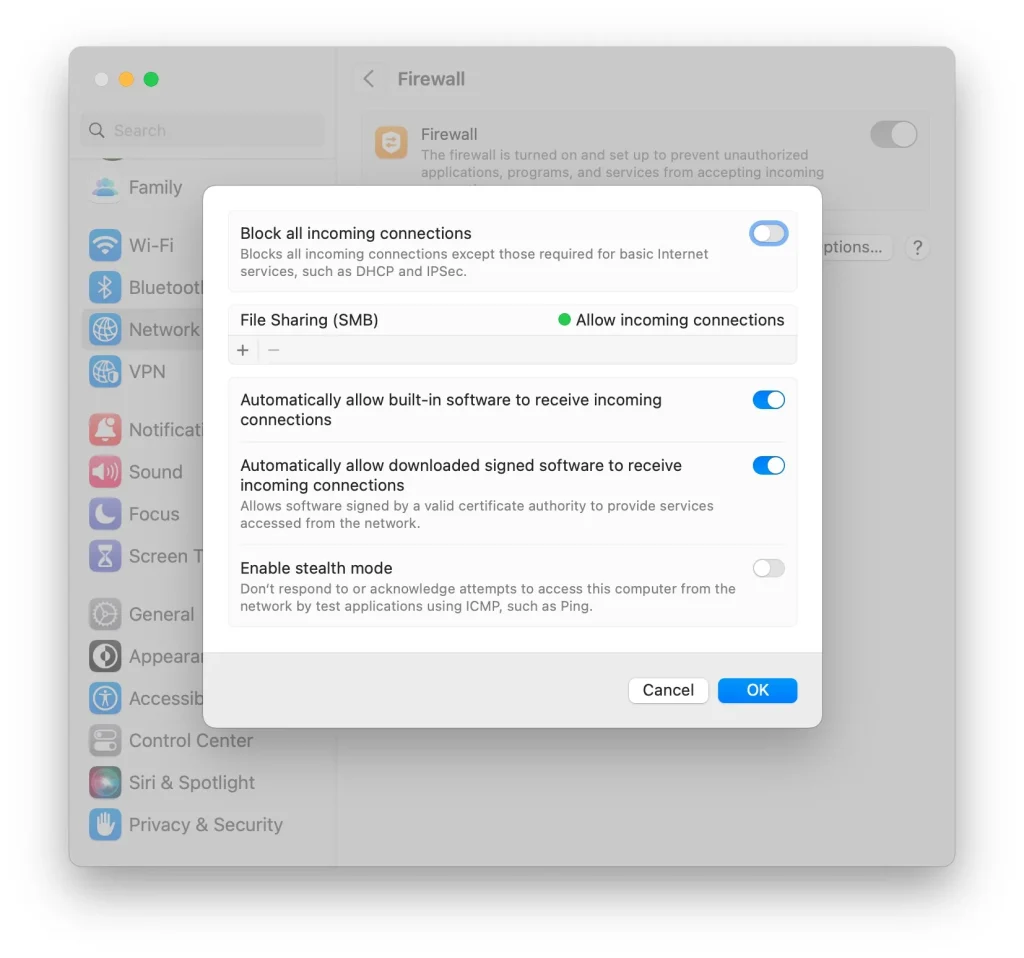
Solution 2: Configure Mac Firewall
- Open the Apple menu.
- Go to System Settings → Privacy & Security → Firewall.
- Open Firewall Options.
- Add QuickBooks and QuickBooks Server.
- Allow incoming connections.
Solution 3: Check File Sharing Permissions
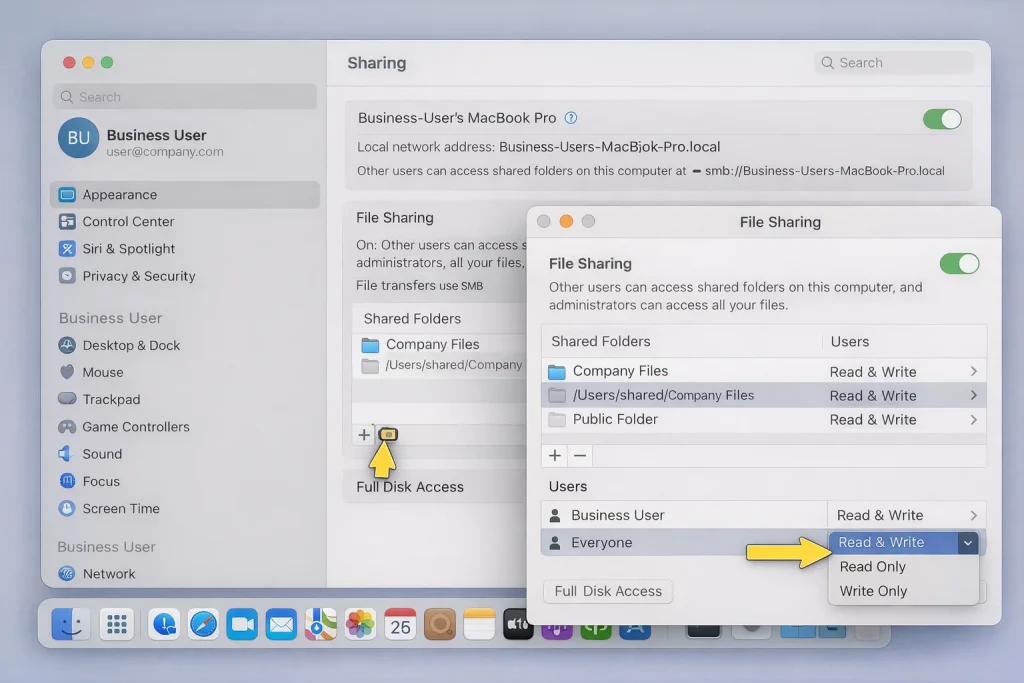
- Open System Settings.
- Go to General → Sharing.
- Enable File Sharing.
- Add the company file folder.
- Set the required users to Read & Write.
Solution 4: Check Bonjour Service
Bonjour helps Macs discover other computers. Open Finder → Network and make sure the other computers are visible. If they are not, restart the Macs and confirm they are on the same network.
Solution 5: Avoid Wi-Fi Issues
- Use Ethernet when possible.
- Ensure a stable network connection.
- Avoid switching networks while QuickBooks is open.
Quick Fix Summary
| Problem | Fix | Platform |
|---|---|---|
| Hosting issue | Configure hosting | Windows |
| File not opening | Rename .ND file | Windows |
| Firewall blocking | Check QuickBooks firewall rules | Windows |
| File not shared | Start sharing | Mac |
| Permissions issue | Set Read/Write access | Mac |
Frequently Asked Questions
Why does QuickBooks switch back to single-user mode automatically?
This can happen when hosting is enabled on multiple computers, the server temporarily loses connection, or another user opens the file in single-user mode.
Why can’t my workstation find the server?
Possible causes include incorrect network settings, disabled network discovery, or a server name or IP mismatch.
What ports does QuickBooks use for multi-user mode?
QuickBooks uses dynamic ports depending on the version. Common examples include 8019, 56728, and 55378–55382.
Can antivirus software cause multi-user issues?
Yes. Antivirus software can block QuickBooks services or network communication. Check exceptions before disabling security software.
Why is QuickBooks Database Server Manager not showing my company file?
The folder may not be added to Database Server Manager, the file location may be incorrect, or permissions may be missing. Scan the folder where the company file is stored.
Does file size affect multi-user mode?
Very large company files can slow down or disrupt multi-user access. Consider using the appropriate QuickBooks data-management tools if the file has grown significantly.
Why does multi-user mode work on some computers but not others?
This often points to firewall differences, permission issues, or mismatched network configuration between workstations.
Conclusion
Resolving QuickBooks multi-user mode problems starts with finding where communication is breaking between the server and workstations.
Check hosting, database services, file access, firewall settings, and the network connection in that order. For Mac systems, also check file sharing and QuickBooks Server settings.
About RyanFila
RyanFila is an experienced software support professional who has worked with different clients and helped them solve QuickBooks and Quicken problems. Through RyanFila, he shares free troubleshooting tips, practical guides, and useful information for accounting software users.