QuickBooks Desktop
QuickBooks Company File Won’t Open? Try These Solutions 2026

QuickBooks & Quicken support guides
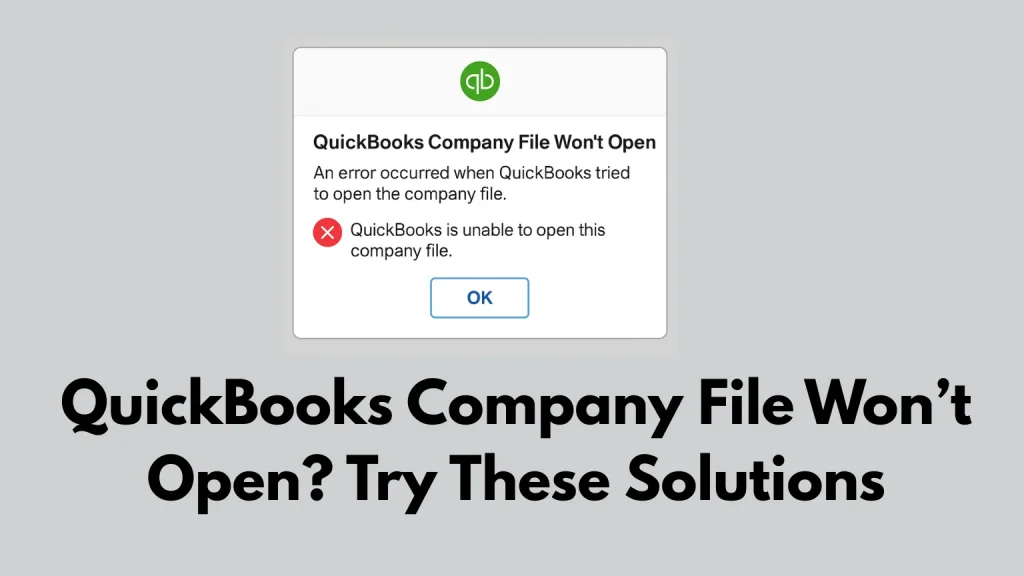
When your QuickBooks company file won’t open, it can stop your entire workflow. The problem may come from a damaged company file, corrupted configuration files, permission restrictions, a damaged QuickBooks installation, or a network or storage issue.
Below are practical solutions you can try before moving to more advanced repair steps.
Common Reasons Why the QuickBooks Company File Won’t Open
1. Damaged or Corrupted Company File (.QBW)
A company file can become damaged after sudden shutdowns, network problems, or other system issues.
2. Damaged ND or TLG Configuration Files
QuickBooks uses .ND and .TLG files to connect to the company file. Corruption in these files can prevent the company file from opening.
3. QuickBooks Installation Errors
Missing or damaged program components can prevent QuickBooks Desktop from loading the company file.
4. Network or Folder Permission Issues
If the folder does not provide the required access, QuickBooks may not be able to read or write the company file.
5. File Located on External Drives or Cloud Folders
Files stored in OneDrive, Dropbox, Google Drive, external hard drives, or USB drives can sometimes have access or synchronization problems.
6. QuickBooks Automatically Crashes While Loading
QuickBooks can sometimes try to reopen previously used windows and fail during startup.
How to Fix a QuickBooks Company File That Won’t Open
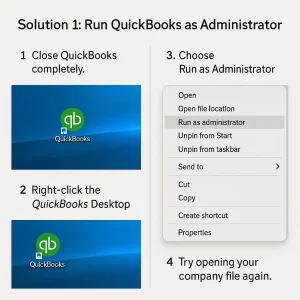
Solution 1: Run QuickBooks as Administrator
Running QuickBooks with administrator rights can resolve permission-related problems.
- Close QuickBooks completely.
- Right-click the QuickBooks Desktop icon.
- Choose Run as Administrator.
- Try opening your company file again.
Why this works
Administrator mode gives QuickBooks greater access to the files and folders it needs.
Solution 2: Use QuickBooks Tool Hub + QuickBooks File Doctor
- Download the latest QuickBooks Tool Hub from Intuit.
- Install and open it.
- Go to Company File Issues.
- Run QuickBooks File Doctor.
- Choose your company file.
- Select the file-check option and start the scan.
- Enter the QuickBooks admin password if requested.
- Wait for the scan to complete.
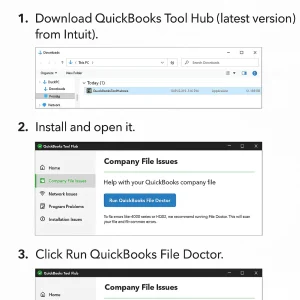
File Doctor can help identify company-file damage and some network-related problems.
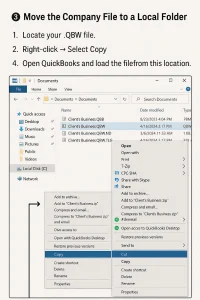
Solution 3: Move the Company File to a Local Folder
Files stored on network locations or cloud services may have connection or synchronization issues.
- Locate your .QBW file.
- Copy it.
- Paste it into a safe local folder such as C:\Users\Public\Documents\Intuit\QuickBooks\Company Files.
- Open QuickBooks and load the file from the local location.
Solution 4: Rename Corrupt ND and TLG Files
- Open the folder containing your .QBW file.
- Find the .ND and .TLG files with the matching company-file name.
- Right-click each file and choose Rename.
- Add .old at the end of each filename.
- Open QuickBooks again.
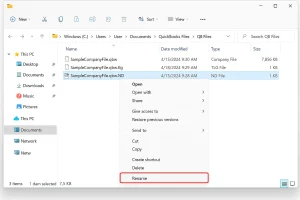
QuickBooks can recreate these files when it starts again.
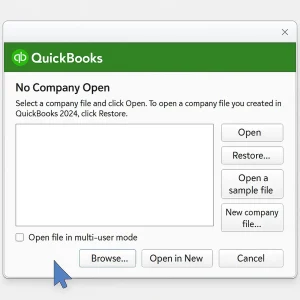
Solution 5: Suppress QuickBooks Desktop at Startup
If QuickBooks crashes while loading the company file, suppressing startup windows can help.
- Hold down the Ctrl key.
- Double-click the QuickBooks Desktop icon.
- Continue holding Ctrl until the No Company Open window appears.
- Select your file and open it.
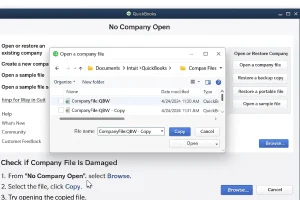
Solution 6: Check if the Company File Is Damaged
- Open the No Company Open window.
- Click Browse.
- Select your company file.
- Create a copy.
- Try opening the copied file.
If the copy opens but the original does not, the original file may be damaged.
Solution 7: Repair QuickBooks Desktop Installation
- Open Control Panel.
- Go to Programs → Programs and Features.
- Select QuickBooks Desktop.
- Click Uninstall/Change.
- Choose Repair.
- Follow the prompts and restart the computer.
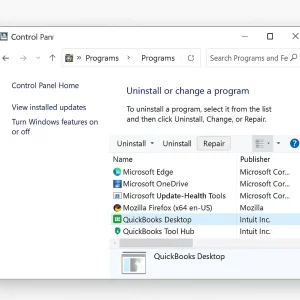
This can replace damaged or missing installation components.
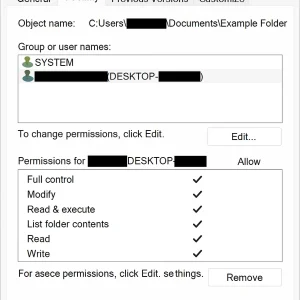
Solution 8: Verify Folder Permissions
- Right-click the company file folder and select Properties.
- Open the Security tab.
- Click Edit.
- Check that the appropriate user account has Full Control, Read, Write, and Modify permissions.
- Apply the changes and reopen QuickBooks.
Frequently Asked Questions
Why does QuickBooks say my company file is already open?
This can happen if QuickBooks did not close properly, a background process is still running, or another workstation has the file open. Close QuickBooks processes and try again.
Can I repair a corrupted QuickBooks company file?
You can try QuickBooks File Doctor, Verify and Rebuild Data, or restore a backup file.
What if QuickBooks freezes when opening the company file?
Try suppressing QuickBooks startup or renaming the ND and TLG files. If the problem continues, repair the QuickBooks installation.
Can antivirus software block my company file?
Yes. Security software can block QuickBooks or access to the company-file folder. Check your security exceptions and firewall settings.
What happens if none of the solutions work?
If the file is severely damaged, restore a recent backup or seek professional file-repair assistance before making further changes.
Conclusion
When a QuickBooks company file won’t open, start with simple steps such as running QuickBooks as administrator, renaming ND/TLG files, and using QuickBooks Tool Hub.
If those steps do not help, test a local copy, repair the QuickBooks installation, and check folder permissions. Working through the solutions in order can help you find the cause without immediately reinstalling the entire program.
About RyanFila
RyanFila is an experienced software support professional who has worked with different clients and helped them solve QuickBooks and Quicken problems. Through RyanFila, he shares free troubleshooting tips, practical guides, and useful information for accounting software users.