If your QuickBooks multi-user mode is not working, it usually means your workstations cannot communicate properly with the server hosting the company file.
This guide will walk you through detailed, step-by-step solutions for both:
✅ Mac (QuickBooks for Mac)
✅ Windows (QuickBooks Desktop)
🚀 Start Here: 3 Essential Fixes (Try These First)
Before advanced troubleshooting, follow these carefully.
✅ Fix 1: Check Hosting Settings (Most Important)
This is the #1 cause of multi-user issues.
👉 On the SERVER computer (where the company file is stored):
Open QuickBooks
Do NOT open the company file yet
Click File (top menu)
Hover over Utilities
Look for:
If you see “Host Multi-User Access,” → click it
If you see “Stop Hosting Multi-User Access” → DO NOTHING (already correct)
👉 On each workstation computer:
Open QuickBooks
Click File > Utilities
If you see:
“Stop Hosting Multi-User Access” → Click it
Confirm the prompt
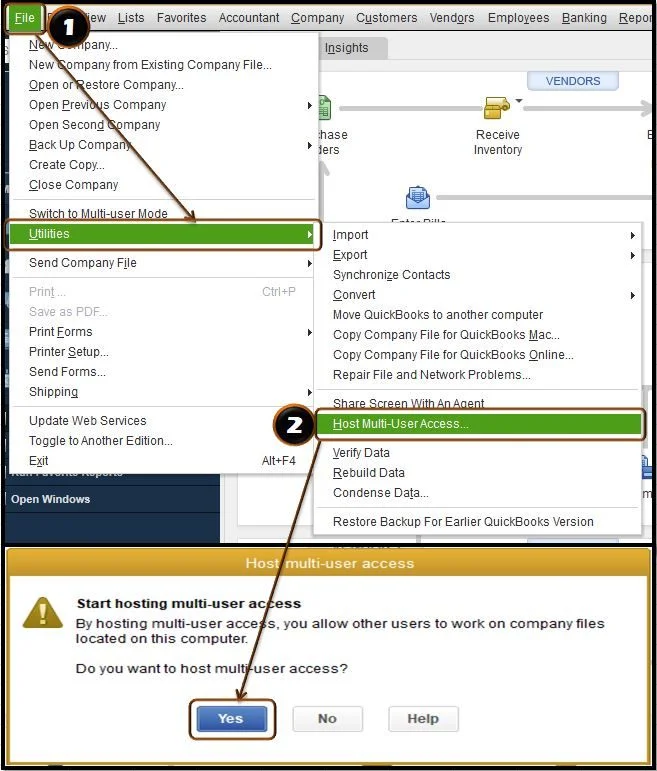
👉 Only ONE computer (server) should host multi-user mode.
✅ Fix 2: Restart QuickBooks Database Server (Critical Service)
This service allows other computers to connect.
Follow the steps:
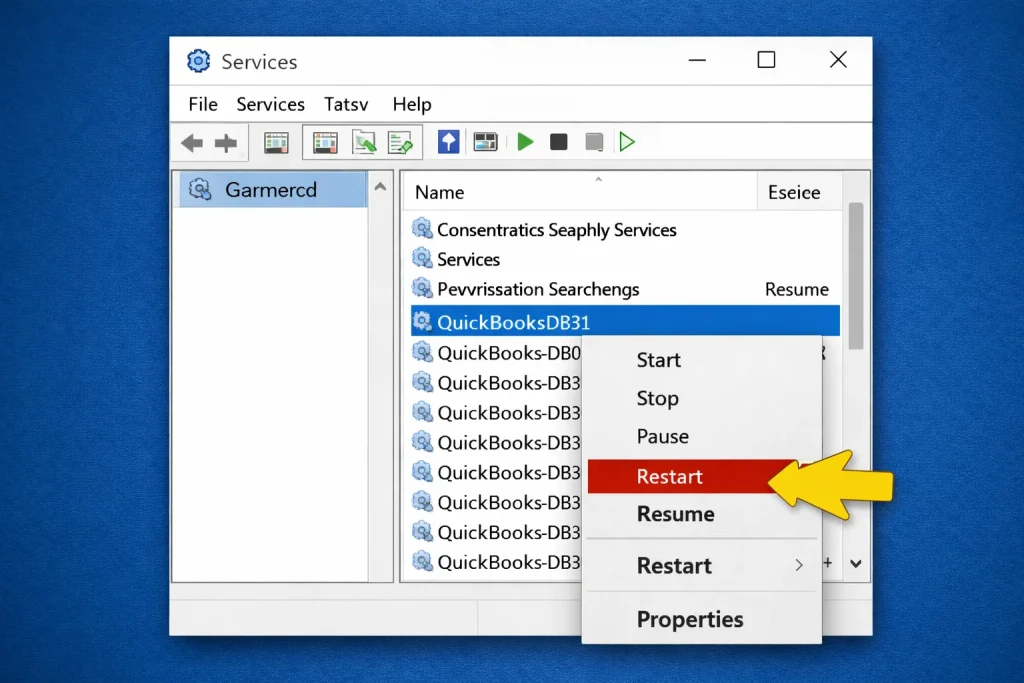
Press Windows + R on your keyboard
Type: services.msc
Press Enter
In the Services window, scroll down
Find: QuickBooksDBXX (XX = version year)
Right-click on it
Click Restart
If Restart is not available:
Click Start instead
✅ Fix 3: Rename.ND and TLG Files (Fix Network Corruption)
These files control network access.
Follow the steps:
Open File Explorer
Navigate to your company file folder
Look for files like:
YourCompanyFile.qbw.nd
YourCompanyFile.qbw.tlg
Right-click.ND file → Click Rename
Add .old at the end → press Enter
Do the same for.TLG
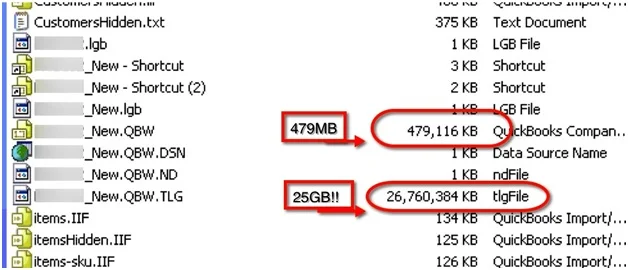
👉 QuickBooks will automatically recreate these files.
🛠 FULL STEP-BY-STEP SOLUTIONS (WINDOWS)
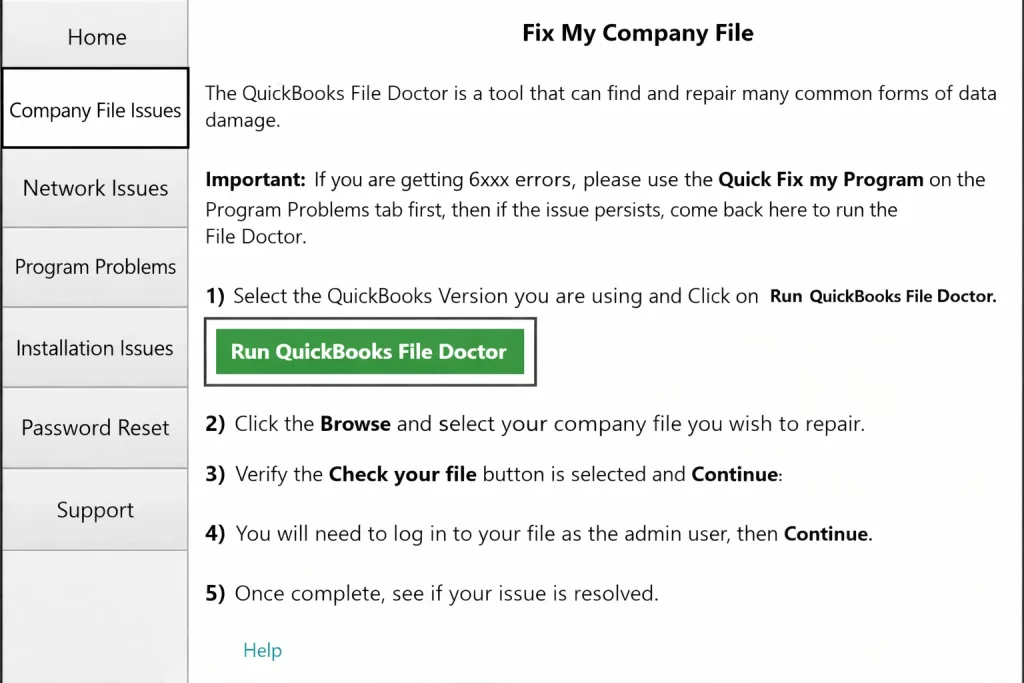
🔧 Solution 1: Run QuickBooks File Doctor (Automatic Repair)
Download QuickBooks Tool Hub from Intuit.com
Double-click on the .exe file
Follow on-screen instructions
Open QuickBooks Tool Hub
Click the Network Issues tab
Select QuickBooks File Doctor
Now: Choose your company file from the list
Select: Check your file and network
Click Continue
Enter the QuickBooks admin password
Click Next
Wait: Scan may take 5–10 minutes
Do NOT close the tool
🔧 Solution 2: Configure Firewall
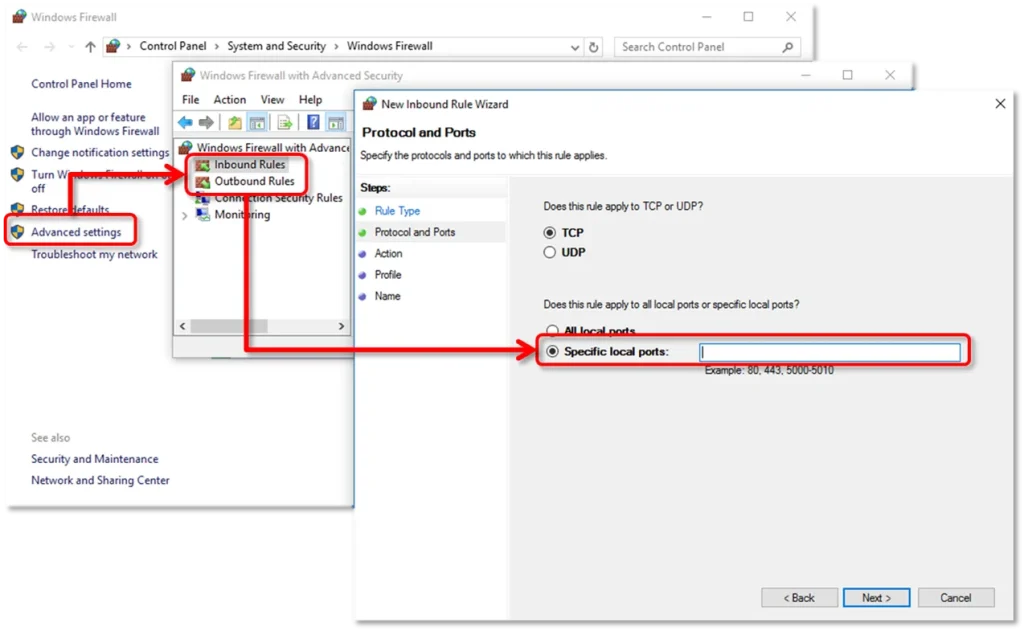
Firewall may block QuickBooks communication.
Steps:
Open Control Panel
Click System and Security
Select Windows Defender Firewall
Click Advanced Settings (left side)
Add Inbound Rule:
Click Inbound Rules
Click New Rule (right side)
Select Port → Click Next
Choose TCP
Enter ports:
8019, 56728, 55378-55382
Click Next
Select Allow the connection
Click Next → Check all profiles
Name it: QuickBooks Ports
Repeat the same for: Outbound Rules
🔧 Solution 3: Check Folder Permissions (Very Important)
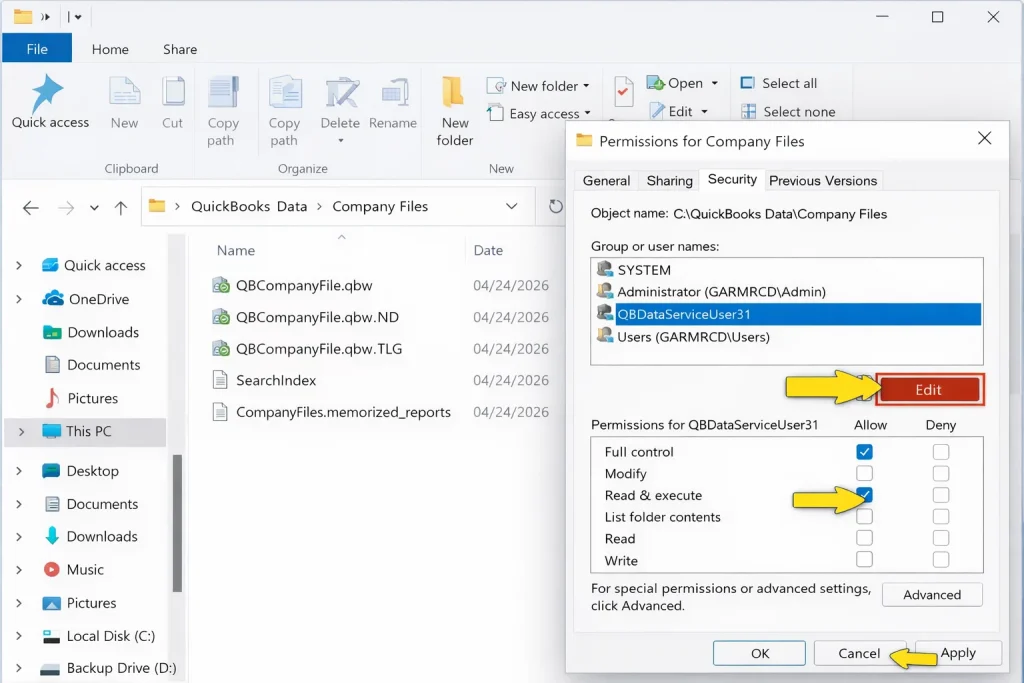
Steps:
Go to company file folder
Right-click → Properties
Go to the Security tab
Click Edit
Now:
Select QBDataServiceUserXX
Check Full Control
Click Apply → OK
🔧 Solution 4: Test Network Connection (Ping Server)
Step 1: Get Server Name
Press Windows + R
Type cmd
Enter: ipconfig/all
Note Host Name
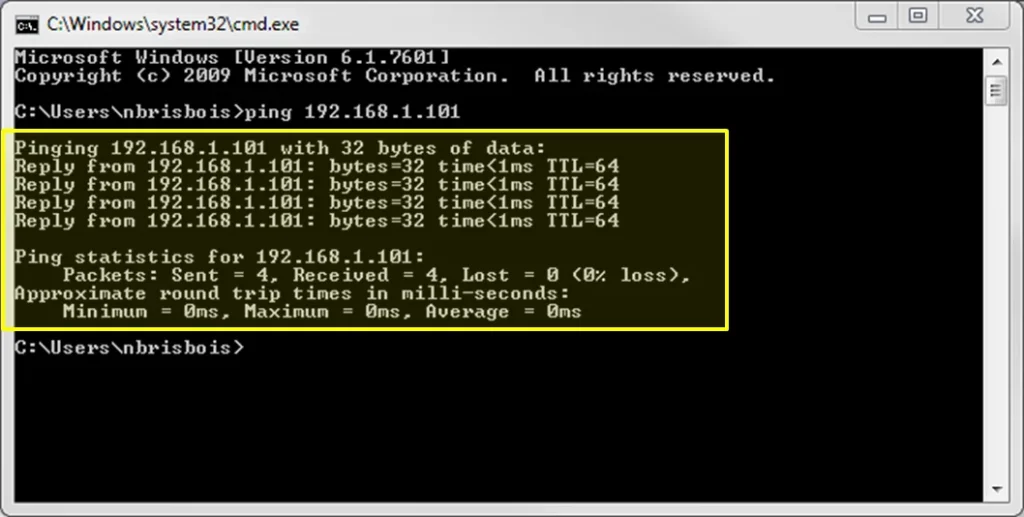
Step 2: Ping from Workstation
ping servername
Results :
✅ Replies → Network OK
❌ Request timed out → Network issue

Fix QUICKBOOKS MULTI-USER MODE IS NOT WORKING ON MAC
Now, let’s fix this on Mac — most guides ignore this, so this is your advantage.
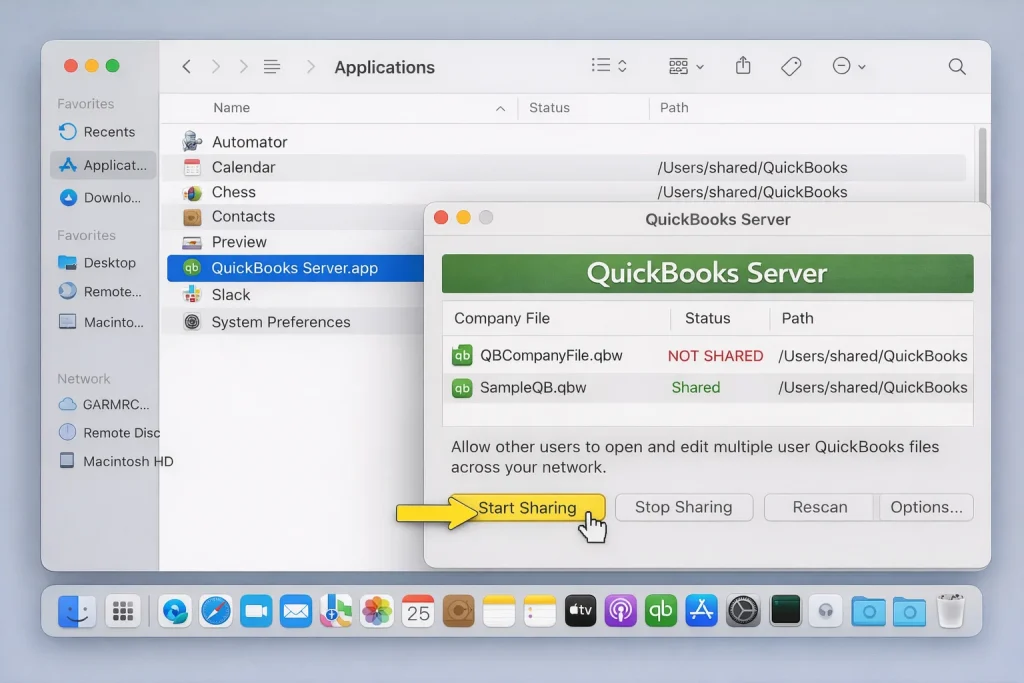
Solution 1: Check QuickBooks Server Status
Steps:
Open Finder
Click Applications
Open: QuickBooks Server.app
Now: Check the company file list
If status shows NOT SHARED:
Select file
Click Start Sharing
Solution 2: Configure Mac Firewall
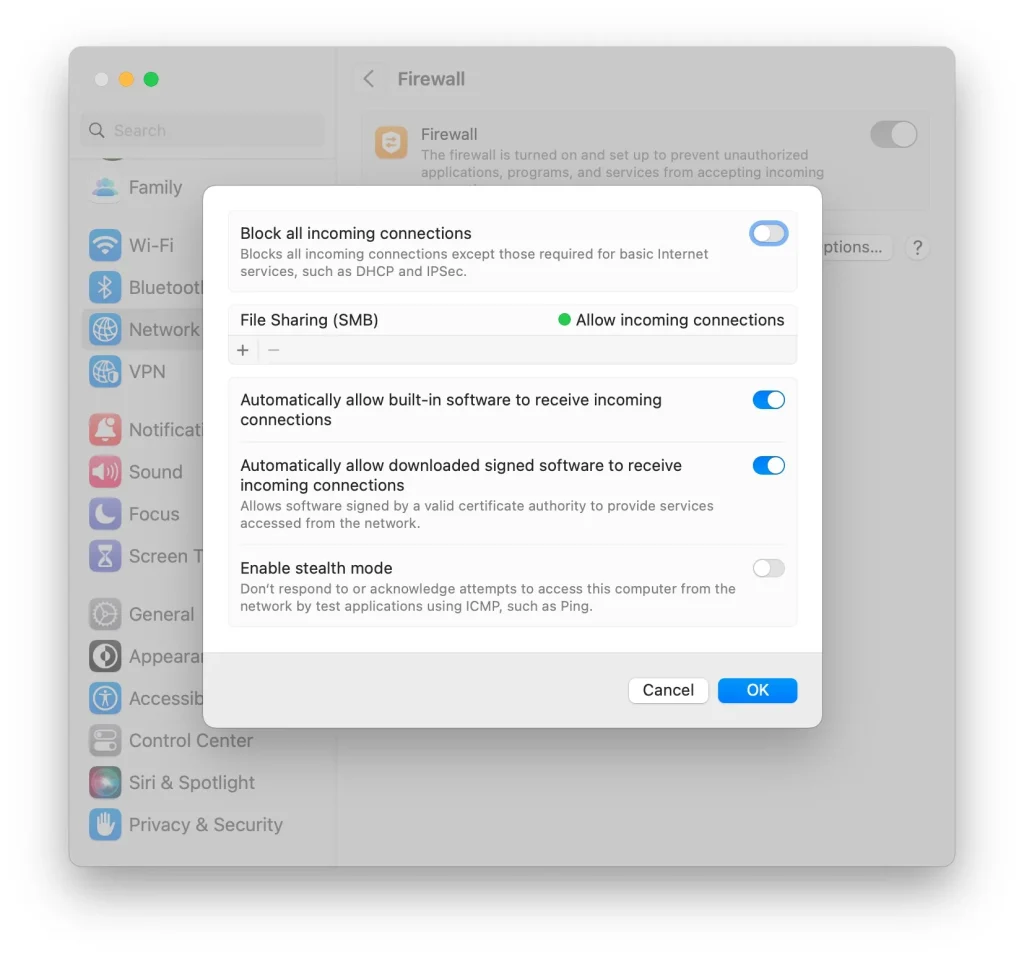
Follow these steps :
Click Apple menu
Open System Settings
Go to Privacy & Security
Click Firewall
Now:
Click Options
Add:
QuickBooks
QuickBooks Server
Set to Allow Incoming Connections
Solution 3: Check File Sharing Permissions
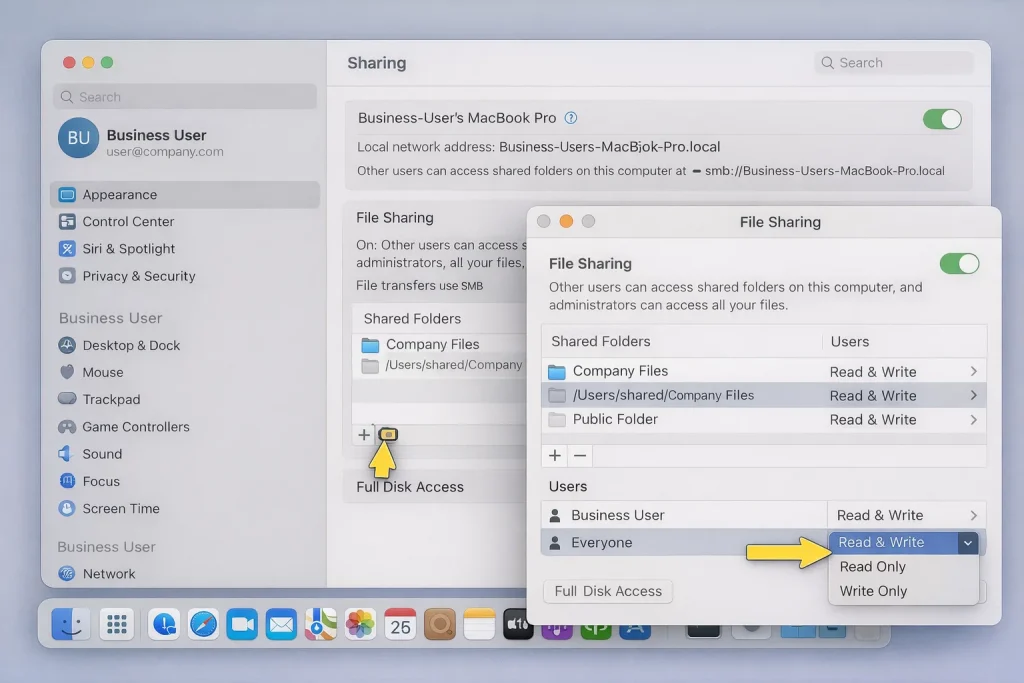
Steps:
Open System Settings
Go to General > Sharing
Enable File Sharing
Now:
Add the company file folder
Set permissions:
Everyone → Read & Write
Solution 4: Check Bonjour Service
Bonjour helps Macs discover each other.
Steps:
Open Finder
Click Network
Ensure other computers are visible
👉 If not visible:
Restart both Macs
Ensure the same network
Solution 5: Avoid Wi-Fi Issues
Use Ethernet instead of Wi-Fi
Ensure a strong signal
Avoid network switching
📊 Quick Fix Summary Table
| Problem | Fix | Platform |
|---|---|---|
| Hosting issue | Configure hosting | Windows |
| File not opening | Rename .ND file | Windows |
| Firewall blocking | Add ports | Windows |
| File not shared | Start sharing | Mac |
| Permissions issue | Set Read/Write | Mac |
Why does QuickBooks switch back to single-user mode automatically?
This usually happens when:
Hosting is enabled on multiple computers
The server loses connection temporarily
Another user opens the file in single-user mode
Make sure only the server hosts multi-user access and all users exit properly.
Why can’t my workstation find the server?
This can occur due to:
Incorrect DNS settings
Network discovery turned off
Server name/IP mismatch
Ensure all systems are on the same network and can ping the server successfully.
What ports does QuickBooks use for multi-user mode?
QuickBooks uses dynamic ports depending on the version, but commonly:
8019
56728
55378–55382
These must be open in your firewall for proper communication.
Can antivirus software cause multi-user issues?
Yes, antivirus programs can block QuickBooks services or ports. You may need to:
Add QuickBooks as an exception
Temporarily disable antivirus for testing
Why is QuickBooks Database Server Manager not showing my company file?
This happens when:
The folder is not added to the Database Server Manager
File location is incorrect
Permissions are missing
You need to manually scan the folder where your company file is stored.
Does file size affect multi-user mode?
Yes, very large company files can slow down or disrupt multi-user access. In such cases:
Use the Condense Data utility
Optimize file size
Why does multi-user mode work on some computers but not others?
This usually indicates:
Firewall differences
Permission issues
Network configuration mismatch
Each workstation must be configured properly.
🏁 Conclusion
Resolving the QuickBooks multi-user mode not working issue isn’t just about applying random fixes — it’s about identifying where the connection is breaking between the server and workstations.
If basic fixes don’t work, focus on these three areas:
Network communication (ping test, server visibility)
System configuration (hosting, services, permissions)
Security layers (firewall and antivirus restrictions)
For Mac environments, the issue is often simpler but overlooked — usually tied to file sharing settings or the QuickBooks Server app not actively sharing the company file.
Instead of trying every solution blindly, approach troubleshooting step by step :
Confirm hosting setup
Verify services are running
Check file accessibility
Test network connection
This structured approach saves time and helps you pinpoint the exact cause faster. Once everything is configured correctly, QuickBooks multi-user mode should provide a stable and seamless experience across all connected systems — without interruptions or access issues.