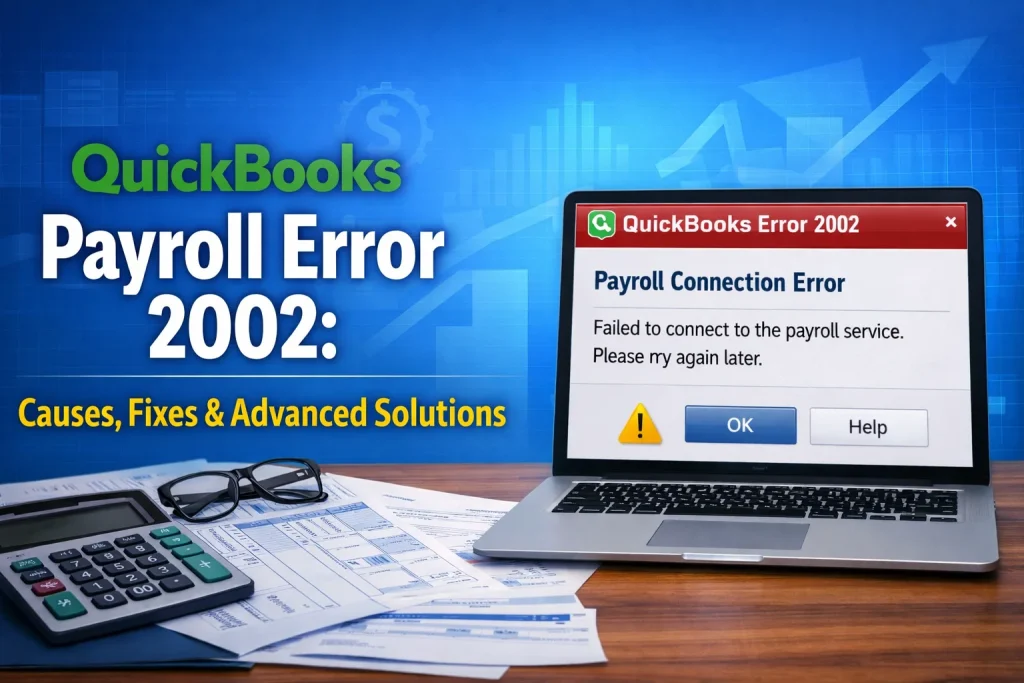
QuickBooks Connection Error 2002 is a frustrating payroll issue that usually appears when you’re trying to send payroll data or use direct deposit. It typically signals a connection failure between QuickBooks and the payroll server, which can disrupt business operations if not resolved quickly.
In this complete guide, you’ll learn what causes Error 2002, how to fix it step-by-step, and advanced troubleshooting methods that actually work.
What is QuickBooks Payroll Error 2002?
QuickBooks Error 2002 occurs when QuickBooks Desktop fails to connect to the payroll service server. This often happens during:
- Sending payroll data
- Direct deposit processing
- Payroll updates
Common Error Messages :
“Payroll Connection Error”
“Payroll Service Server Error. Please try again later.”
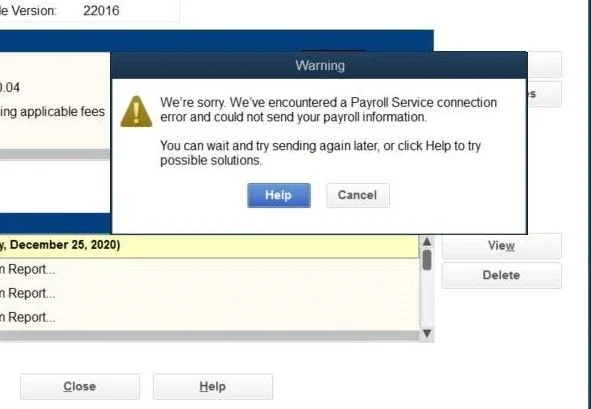
In simple terms, QuickBooks cannot communicate with Intuit’s payroll servers due to network, firewall, or system configuration issues.
Symptoms of QuickBooks Error 2002
Before fixing it, confirm you’re facing this specific issue :
- Payroll fails to send
- Direct deposits don’t process
- Frequent connection errors
QuickBooks freezes during payroll. An error appears in multi-user mode
Causes of QuickBooks Error 2002
Understanding the root cause helps you fix it faster:
Common Causes:
- Firewall blocking QuickBooks internet access
- Incorrect system date & time
- Outdated payroll tax table
- Invalid or expired security certificate
- Poor or unstable internet connection
Advanced Causes :
- Blocked ports (80, 443)
- Incorrect SSL settings in Windows
- Multi-user hosting conflicts
- Corrupted QuickBooks installation
- Antivirus interference
 How to Fix QuickBooks Error 2002 (Step-by-Step)
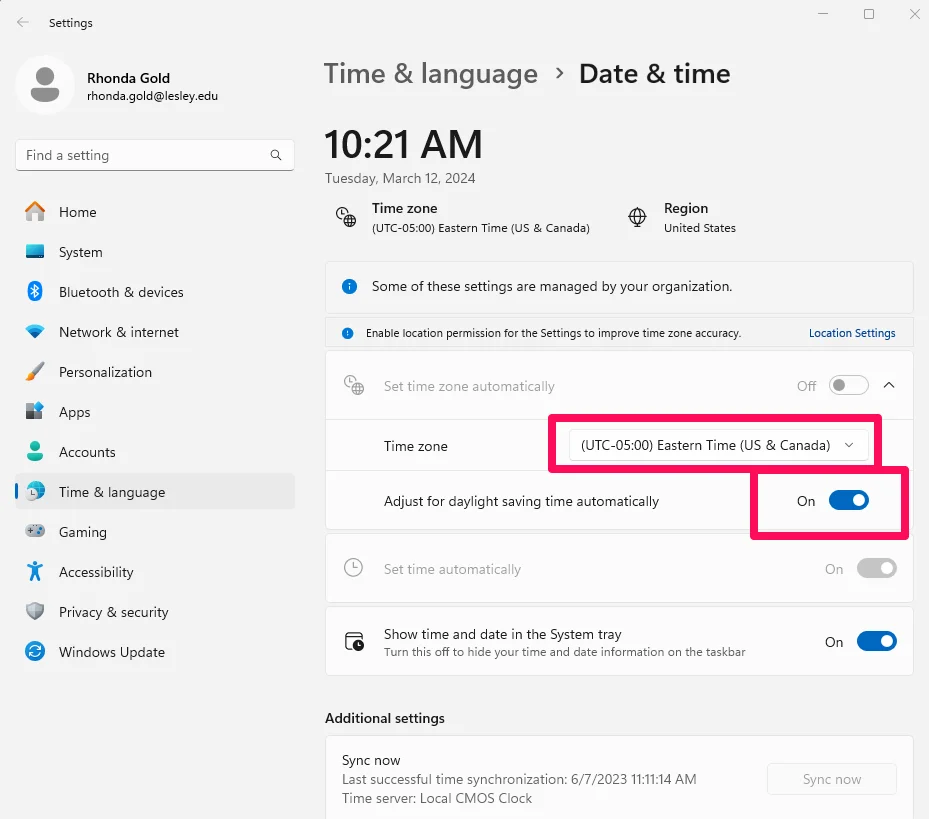
 Solution 1: Fix Date and Time Settings :
An Incorrect system time can break server authentication.
Steps:
- Press Windows + I → Time & Language
- Enable Set time automatically
- Confirm the correct time zone
- Restart QuickBooks and retry payroll
Solution 2: Update Payroll Tax Table :
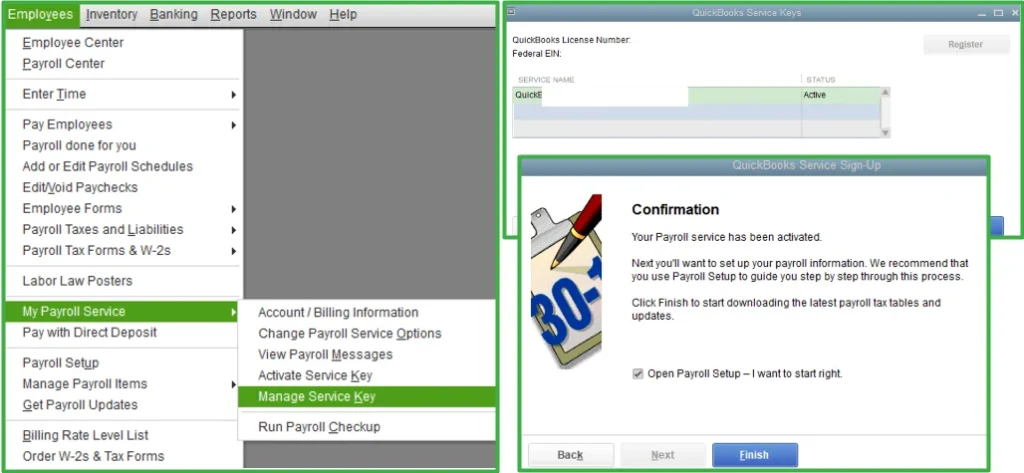
Outdated tax tables can trigger payroll errors.
Steps:
- Go to Employees → Get Payroll Updates
- Check current version
- Click Download Entire Update
- Restart QuickBooks
Solution 3: Restart Your System
A simple reboot can fix temporary network glitches.
Solution 4: Configure Windows Firewall (Important)
This is where most users fix Error 2002.
Steps :
- Open Control Panel → Windows Defender Firewall
- Click Advanced Settings
- Select Inbound Rules → New Rule
- Choose Port → TCP
- Add ports:
- 80
- 443
- Allow connection → Apply to all profiles
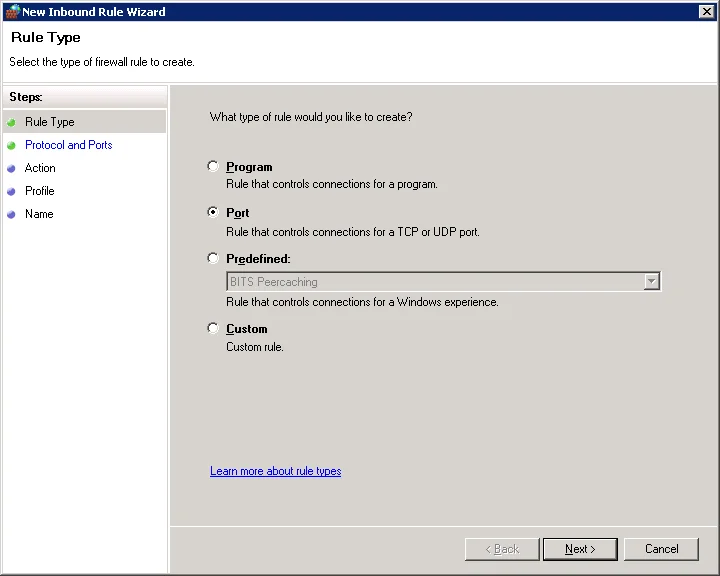
 Repeat for Outbound Rules
Related Post : QuickBooks Payroll Update Error 15270
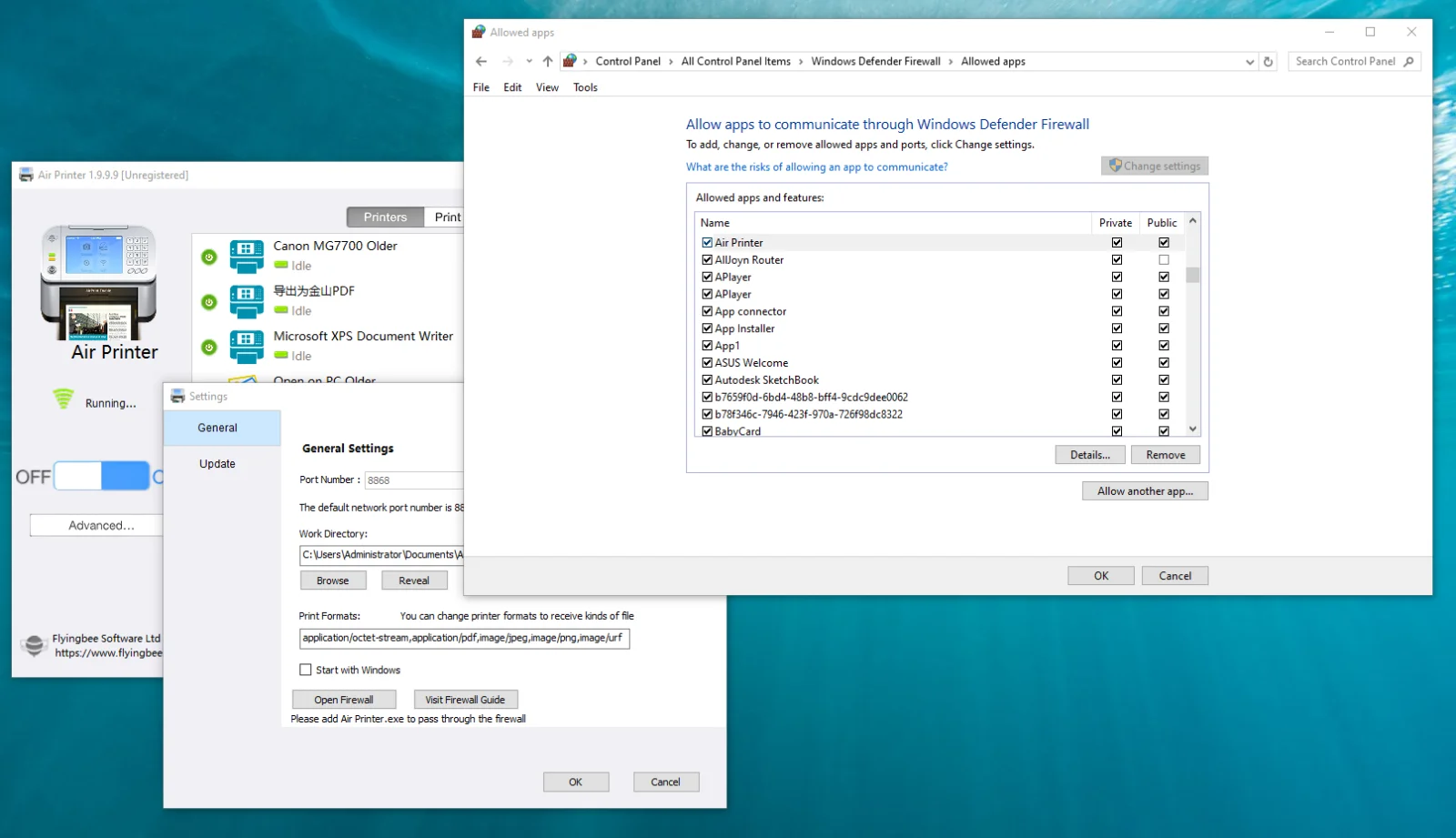
Solution 5: Add QuickBooks as a Firewall Exception
- Go to Firewall settings
- Select Allow an app through the firewall
- Add: QuickBooks.exe or QBW32.exe
- Allow both Private & Public networks
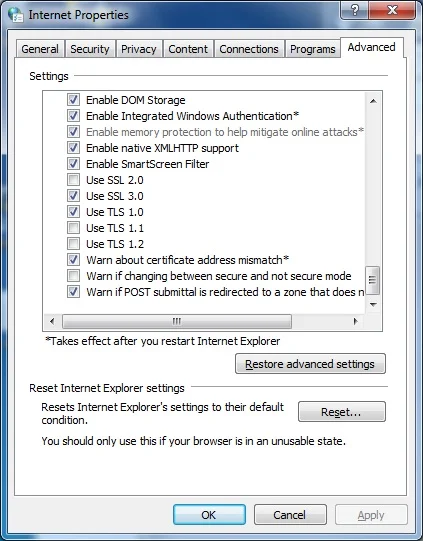
Solution 6: Check Internet & SSL Settings
QuickBooks uses Internet Explorer settings internally.
Steps:
- Open Internet Options
- Go to the Advanced tab
- Ensure:
- SSL 2.0

- SSL 3.0
- TLS 1.2
- Click Apply
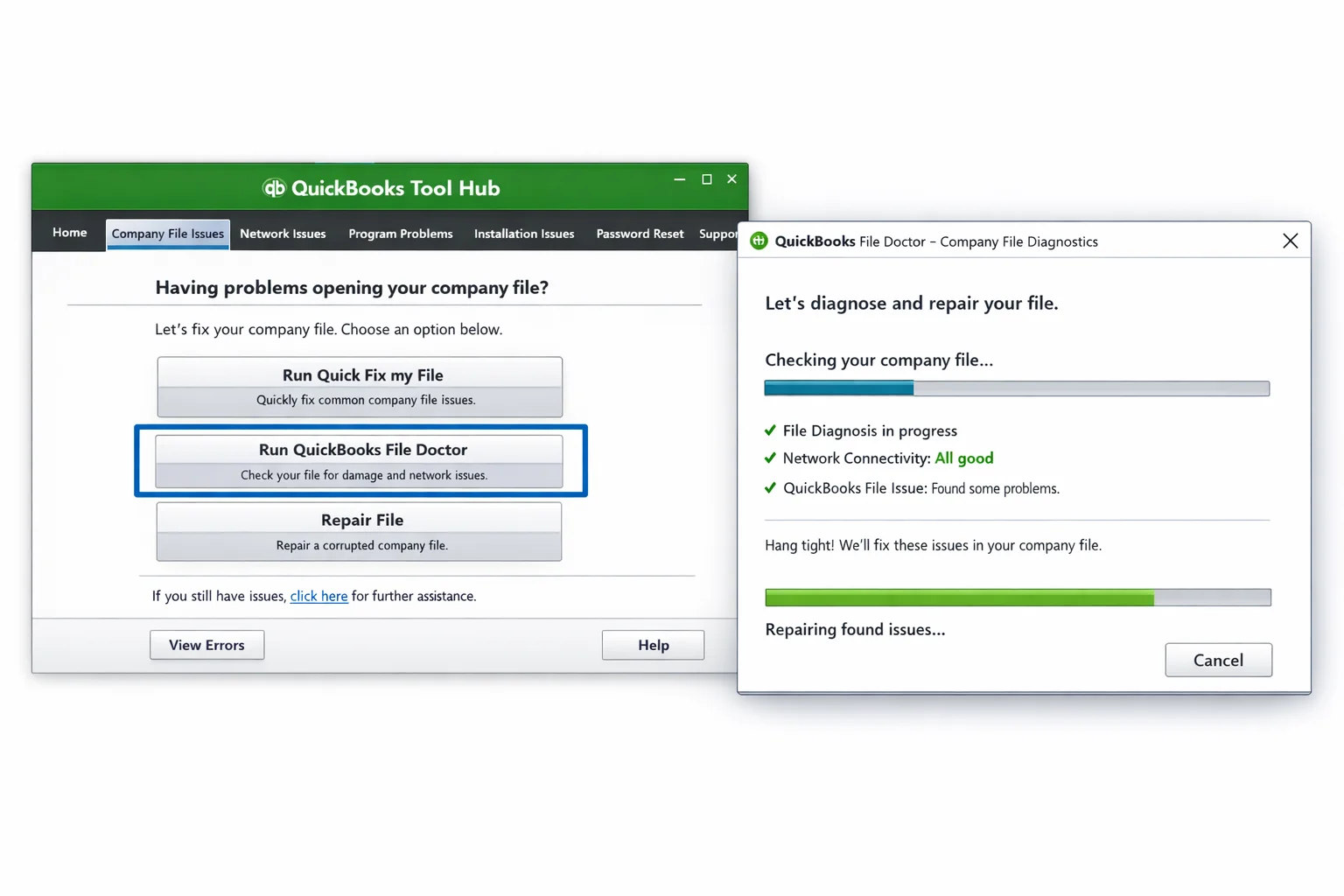
 Solution 7: Use QuickBooks Tool Hub (Advanced Fix)
This is a powerful tool many guides ignore.
Steps:
- Download QuickBooks Tool Hub
- Install and open
- Go to Program Problems
- Run Quick Fix my Program
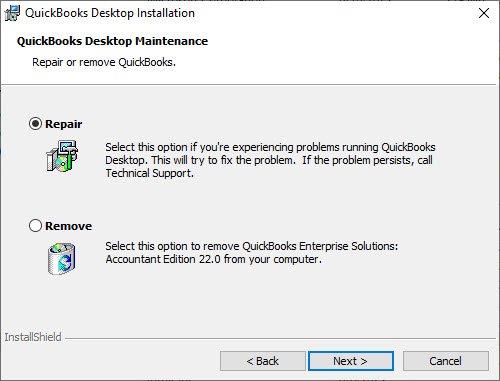
 Solution 8: Repair QuickBooks Installation
If files are corrupted:
- Open Control Panel → Programs
- Select QuickBooks
- Click Repair
- Restart system
 Solution 9: Install New Security Certificate
Go to:
- C:\Program Files\Intuit\QuickBooks
- Right-click QuickBooks.exe → Properties
- Open the Digital Signature tab
- Click Install Certificate
- Restart system
 Pro Fix (If Nothing Works)
Switch to Single-User Mode before sending payroll:
- File → Switch to Single-user Mode
This resolves many hidden conflicts.
 How to Prevent QuickBooks Error 2002
Avoid facing this issue again:
- Keep QuickBooks updated
- Regularly update payroll tax tables
- Configure the firewall properly
- Use a stable internet connection
- Avoid running payroll in multi-user mode
 FAQ
FAQ
 Is QuickBooks Error 2002 a network issue?
Yes, in most cases, QuickBooks Error 2002 is directly related to network connectivity problems. It occurs when QuickBooks cannot establish a secure connection with Intuit’s payroll servers. This can happen due to unstable internet, blocked ports (like 80 or 443), or firewall restrictions. Ensuring a stable internet connection and properly configured network settings usually resolves the issue.
Can antivirus software cause Error 2002?
Yes, antivirus or security software can block QuickBooks from accessing the internet. Some antivirus programs mistakenly identify QuickBooks processes as suspicious and restrict their connection to payroll servers. To fix this, you should add QuickBooks as an exception in your antivirus settings or temporarily disable the antivirus to test if it’s causing the issue.
Does VPN affect QuickBooks payroll?
Yes, using a VPN can interfere with QuickBooks payroll services. VPNs reroute your internet connection, which may block or slow down communication with Intuit servers. This can lead to connection timeouts and trigger Error 2002. It’s recommended to disable your VPN while sending payroll or processing direct deposits.
Can restarting fix Error 2002?
Sometimes, yes. Restarting your computer can resolve temporary glitches such as network interruptions, background process conflicts, or system memory issues. While it’s not a guaranteed fix, it’s a quick and simple step that often works in minor cases.
Why does QuickBooks Error 2002 keep coming back?
If the error keeps recurring, it usually indicates an unresolved underlying issue such as firewall misconfiguration, outdated payroll components, or an unstable internet connection. Rechecking firewall rules, updating QuickBooks, and ensuring proper network settings can help prevent repeated occurrences.
Which QuickBooks versions are affected by Error 2002?
QuickBooks Error 2002 mainly affects QuickBooks Desktop versions that use payroll services. It can occur on multiple versions, including Pro, Premier, and Enterprise, especially when payroll features like direct deposit are used.
Can multi-user mode cause QuickBooks Error 2002?
Yes, running QuickBooks in multi-user mode can sometimes trigger this error. Network conflicts between multiple users may interrupt the connection to payroll servers. Switching to single-user mode before sending payroll often resolves the issue.
Do I need to reinstall QuickBooks to fix Error 2002?
Not always. Reinstallation is usually a last resort. Most cases can be resolved by adjusting firewall settings, updating payroll, or using QuickBooks Tool Hub. However, if the installation files are corrupted, repairing or reinstalling QuickBooks may be necessary.
Can a slow internet connection cause Error 2002?
Yes, a slow or unstable internet connection can interrupt communication with payroll servers, resulting in Error 2002. QuickBooks requires a stable and secure connection to process payroll data successfully.
 Conclusion
QuickBooks Error 2002 can interrupt your payroll workflow, but in most cases, it’s caused by simple issues like incorrect system settings, firewall restrictions, or unstable internet connections. The good news is that this error is usually easy to fix once you identify the root cause.
Start with the quick fixes such as checking your internet connection, correcting date and time settings, and updating your payroll tax table. If the issue persists, move on to more advanced solutions like configuring firewall settings, verifying SSL configurations, or using the QuickBooks Tool Hub.
To avoid facing this error again, make sure your QuickBooks software is always updated, your network settings are properly configured, and you process payroll in a stable environment.
By following the step-by-step solutions in this guide, you should be able to resolve QuickBooks Error 2002 efficiently and keep your payroll operations running smoothly without interruptions.